V6.12.0 Team Mode
Updated on May 6th, 2026.
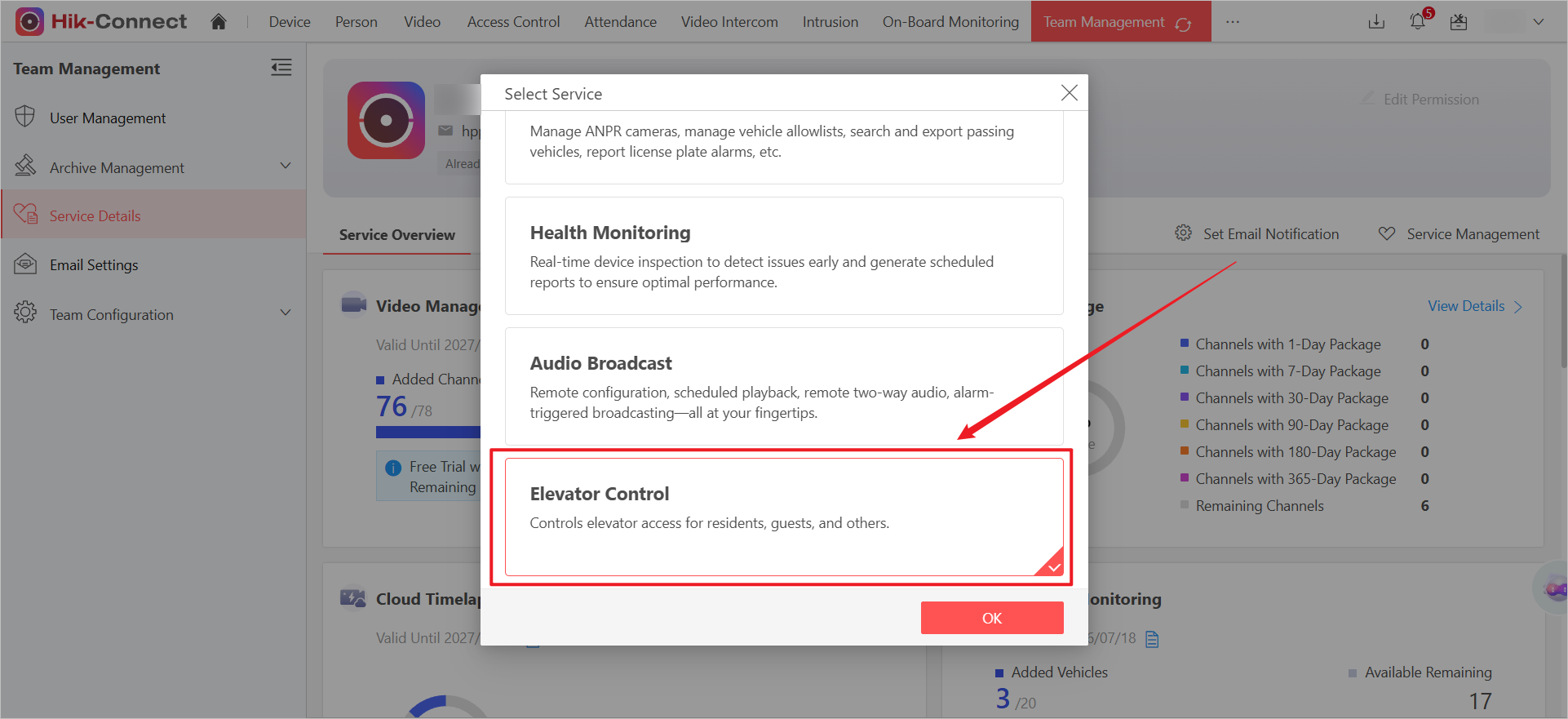
[New] Elevator Control
Elevator Control License
HCT now supports elevator control license packages, charged based on the number of elevator controller, with options for monthly, yearly, etc.
On the Portal and App, elevator control features are now available only when both access control and elevator control services are enabled, with permissions managed similarly to access control.
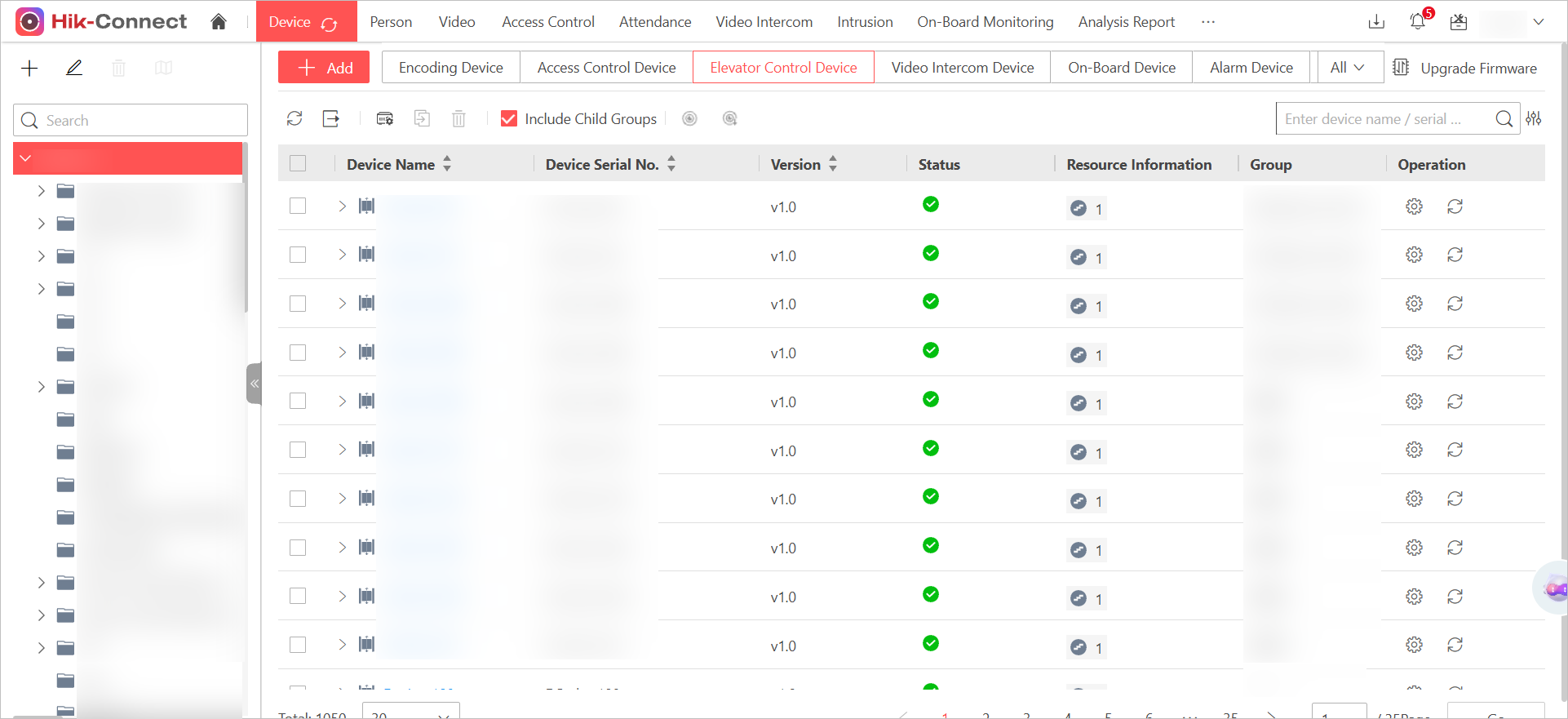
Compatible with Elevator Control Device
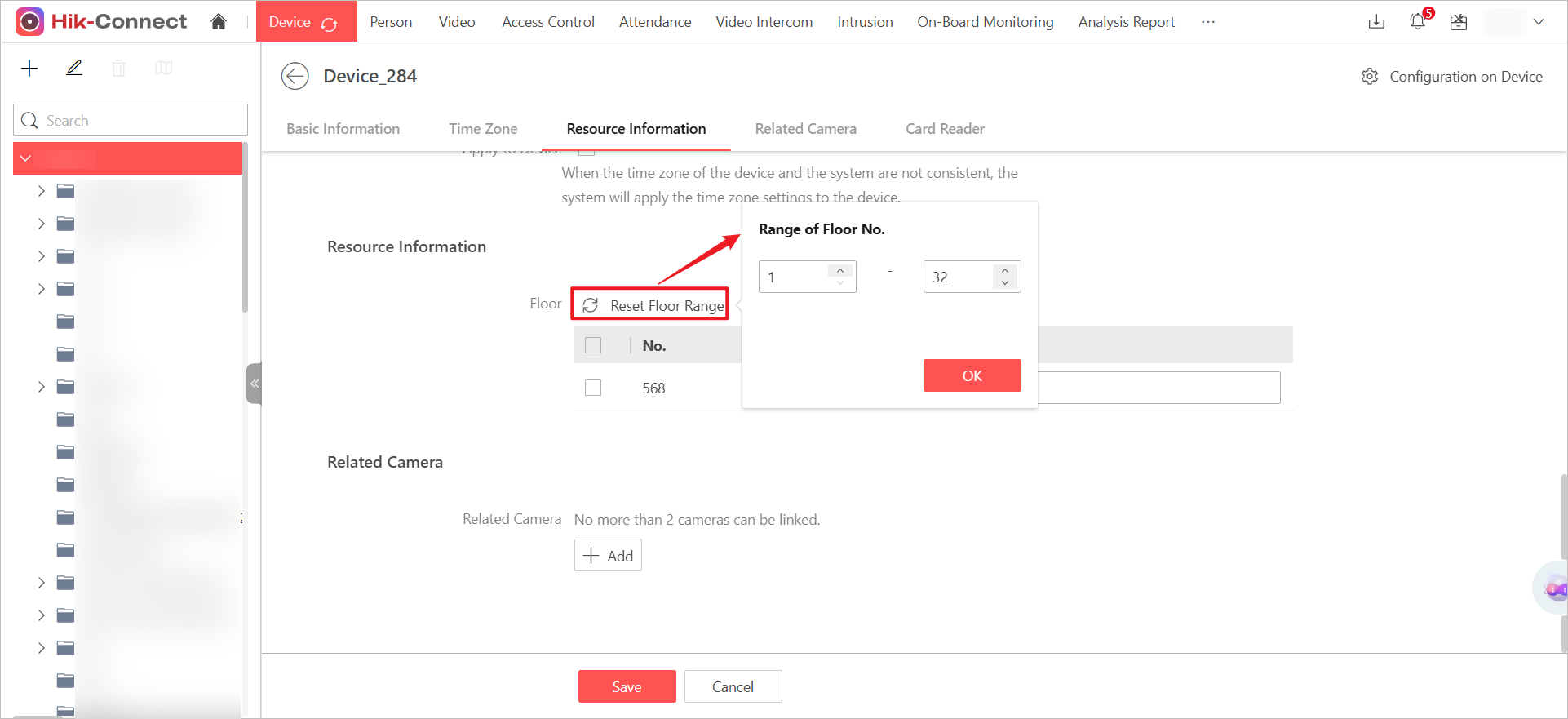
On the Portal and App, you can now add the elevator controller DS-K2220X to integrate with access control for enhanced security. You can use QR code scanning, serial number input, online device discovery, or batch import to add the device, specify floor ranges, and manage parameters like delay times and reader settings.
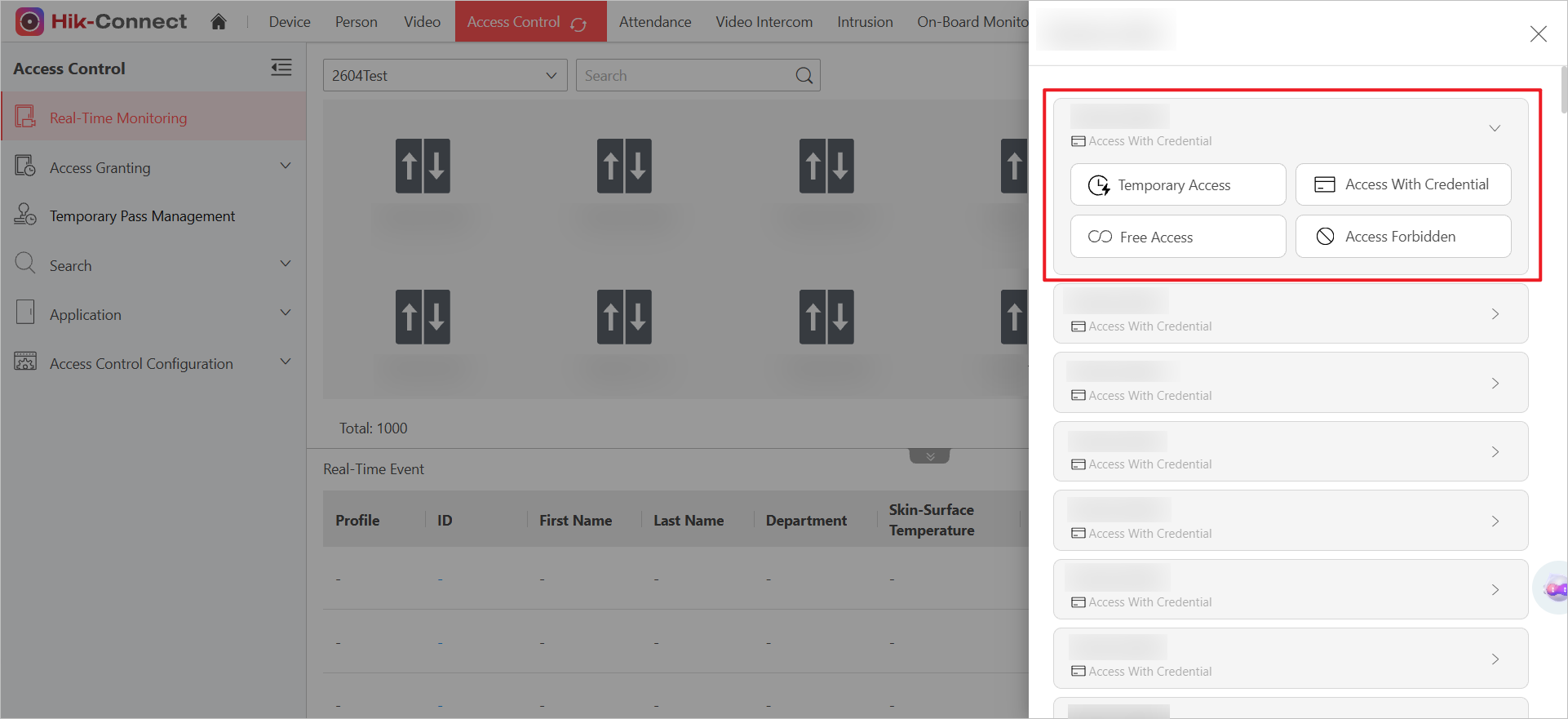
Control Elevators
-
HCT Portal and App now support controlling elevator floors with four commands: Temporary Access (open door), Access with Credential (close door), Free Access (always open), and Access Forbidden (always closed).
Figure 3 Control Elevators -
On the Portal and App, you can now grant access permissions by floor for elevator control, manage floor resources, and view applying status.
Figure 4 Link Floor -
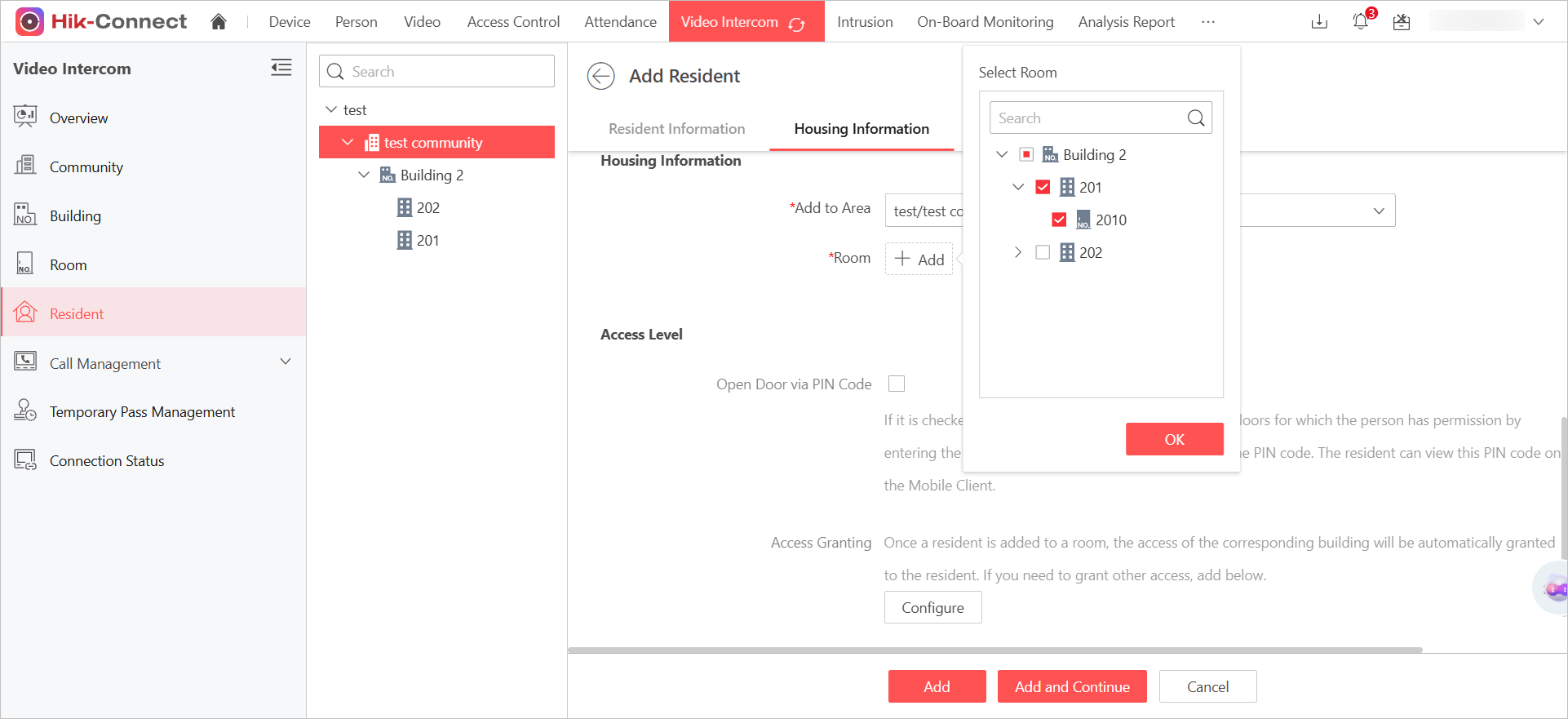
This version allows linking elevator control devices with buildings and floors with rooms; when adding residents or temporary passes, they are automatically granted the elevator access of their floors.
Figure 5 Select Housing Information When Add Elevator Devices -
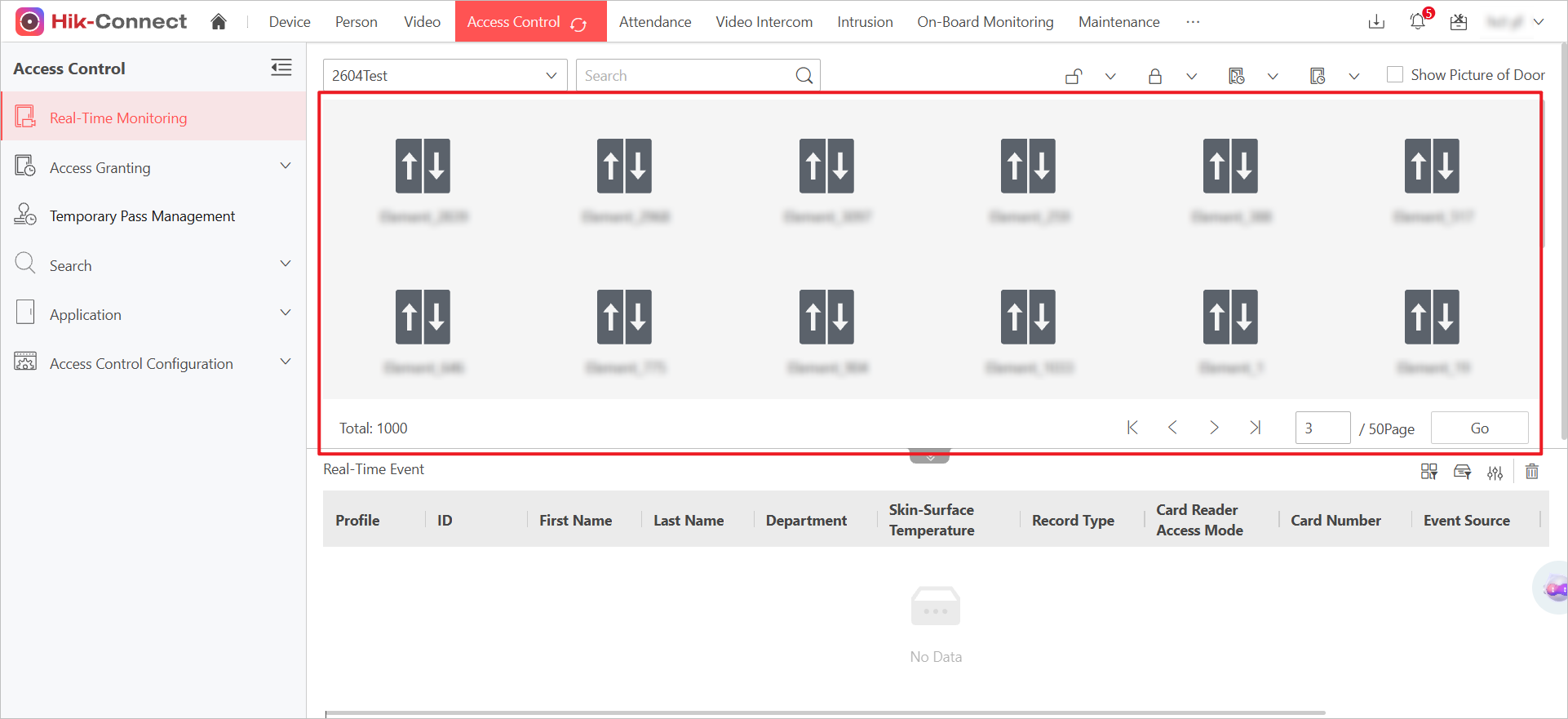
On the Real-Time Monitoring page, you can now view statistics for elevator control devices, including counts and health status.
Figure 6 Elevator Control Device Status and Count
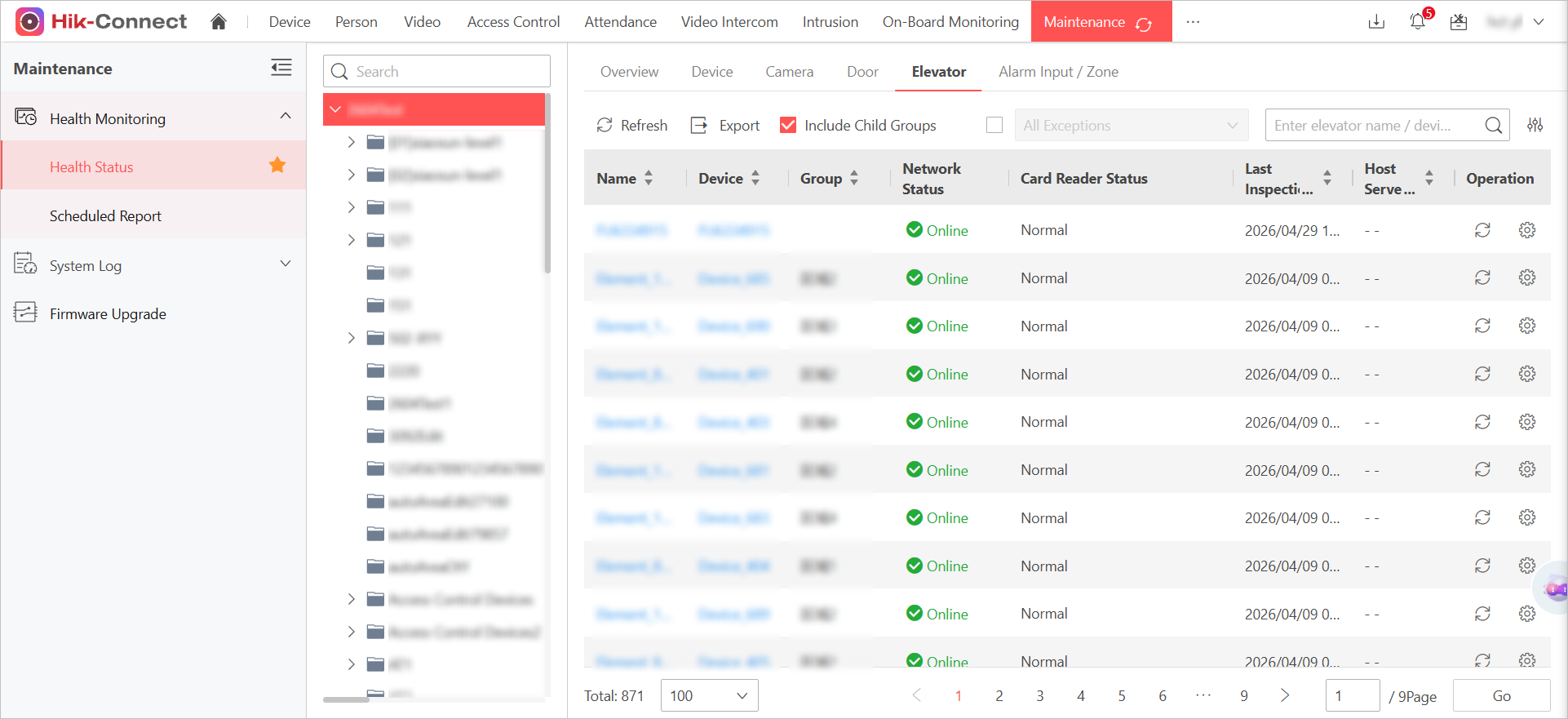
Elevator Control Device Maintenance
On the Portal and App, you can now monitor the health status of elevator control devices and resources, including detailed views of reader and sub-controller states, with filtering options for anomalies.
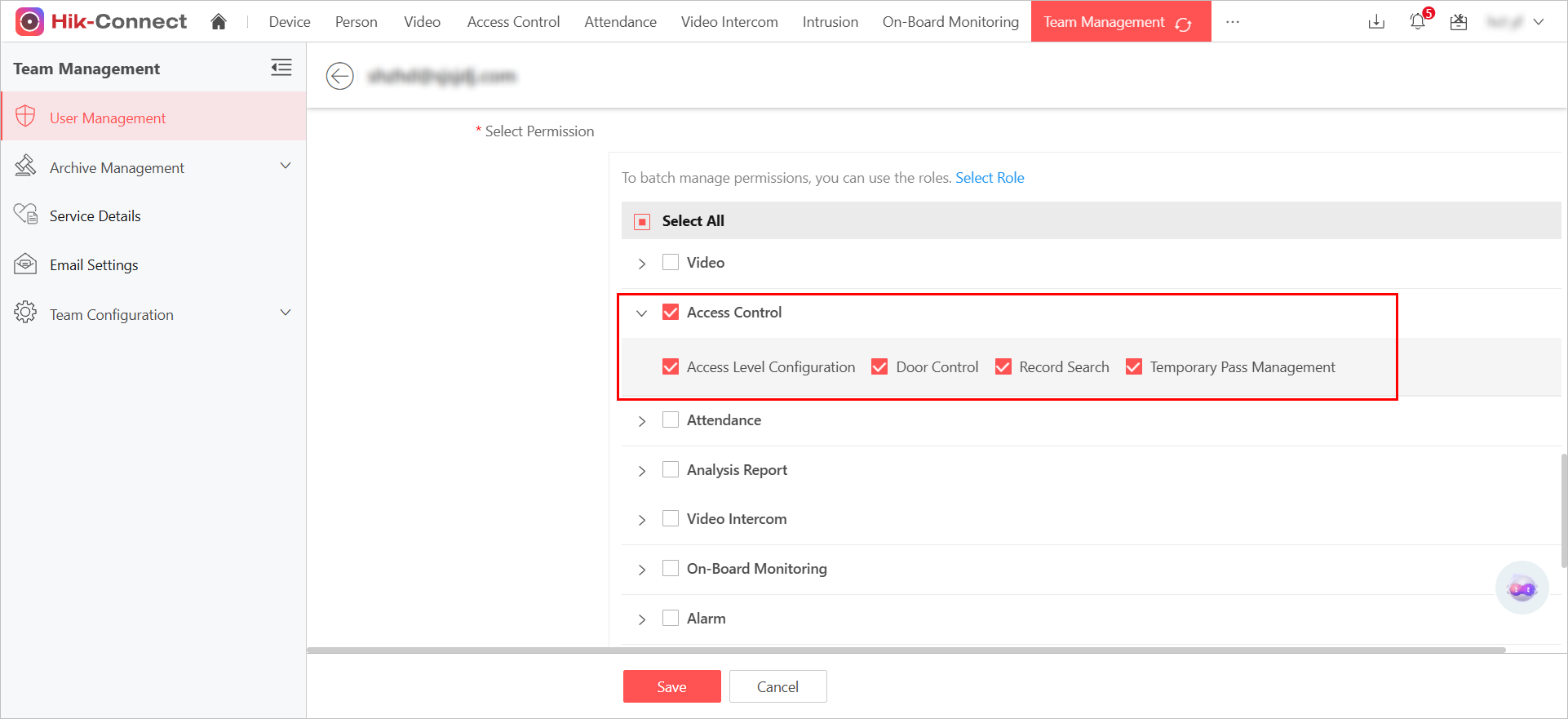
Grant Elevator Control Permission
On the Portal, you can grant the permission of the elevator control module to users, and the permissions are the same as the access control module.
Event and Alarm
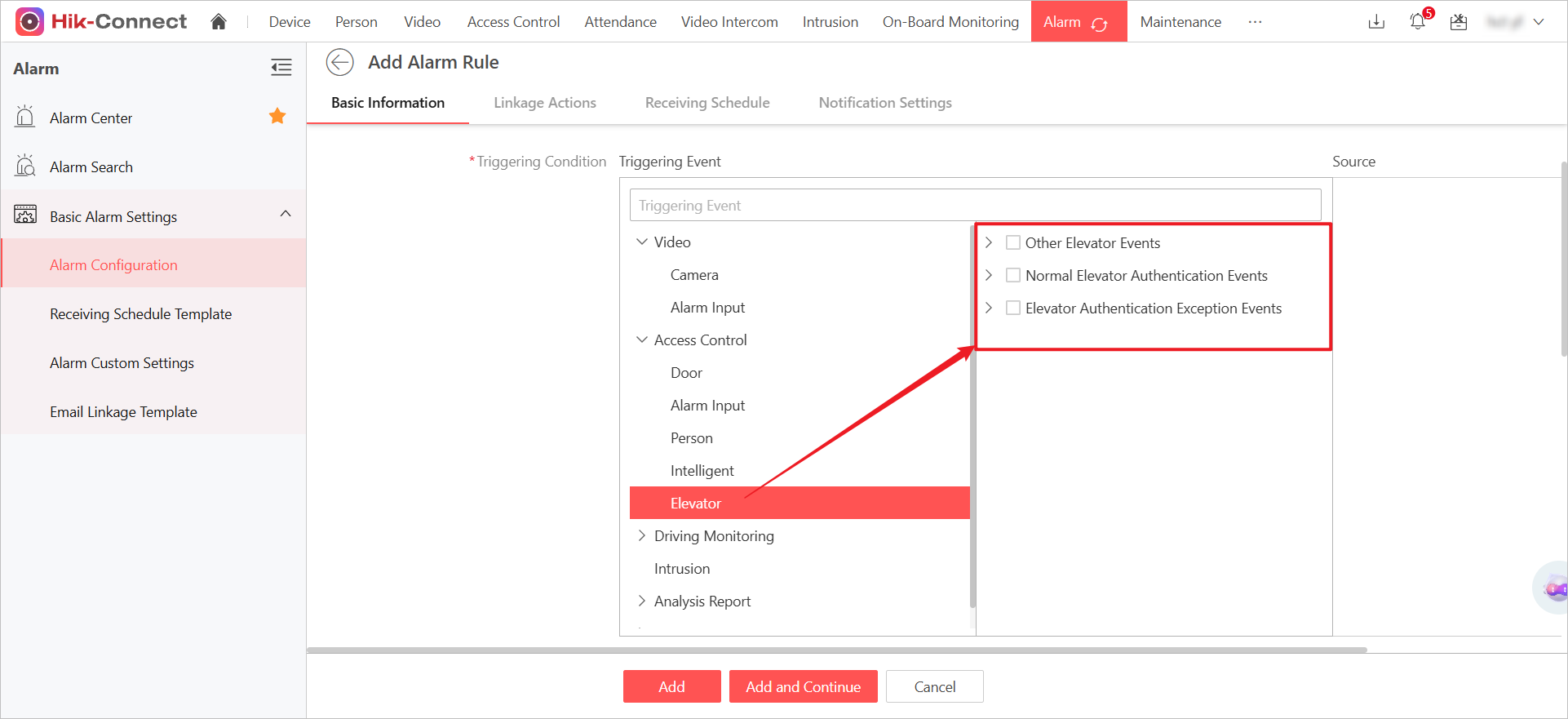
On the Portal, you can now configure alarm rules based on elevator control events, view real-time and historical events, and export records for enhanced security monitoring.
[New] Two-Factor Authentication
You can now enable Two-Factor Authentication for your account. Once enabled, logging in will require not only your password but also a verification code sent to your email or mobile phone via SMS, or a push notification to a trusted device, adding an extra layer of security.
-
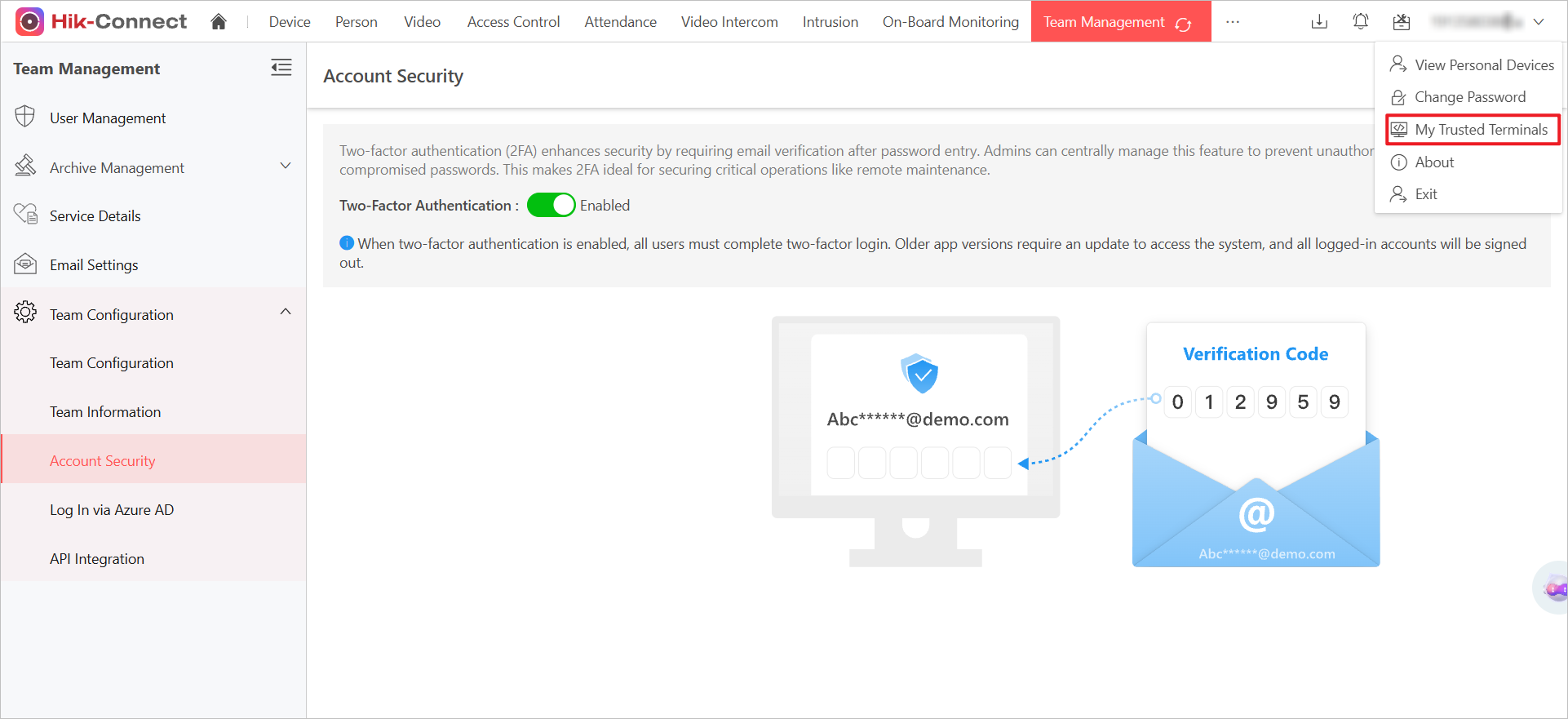
Enabling Two-Factor Authentication: Log in to the Portal/App, navigate to the "Account Security" settings within Team Management, and find the Two-Factor Authentication switch. When enabling, the system will send a verification code to your email for security confirmation.
Figure 10 Enable 2FA -
Login Process: When logging into an account with MFA enabled from a new, untrusted device:
-
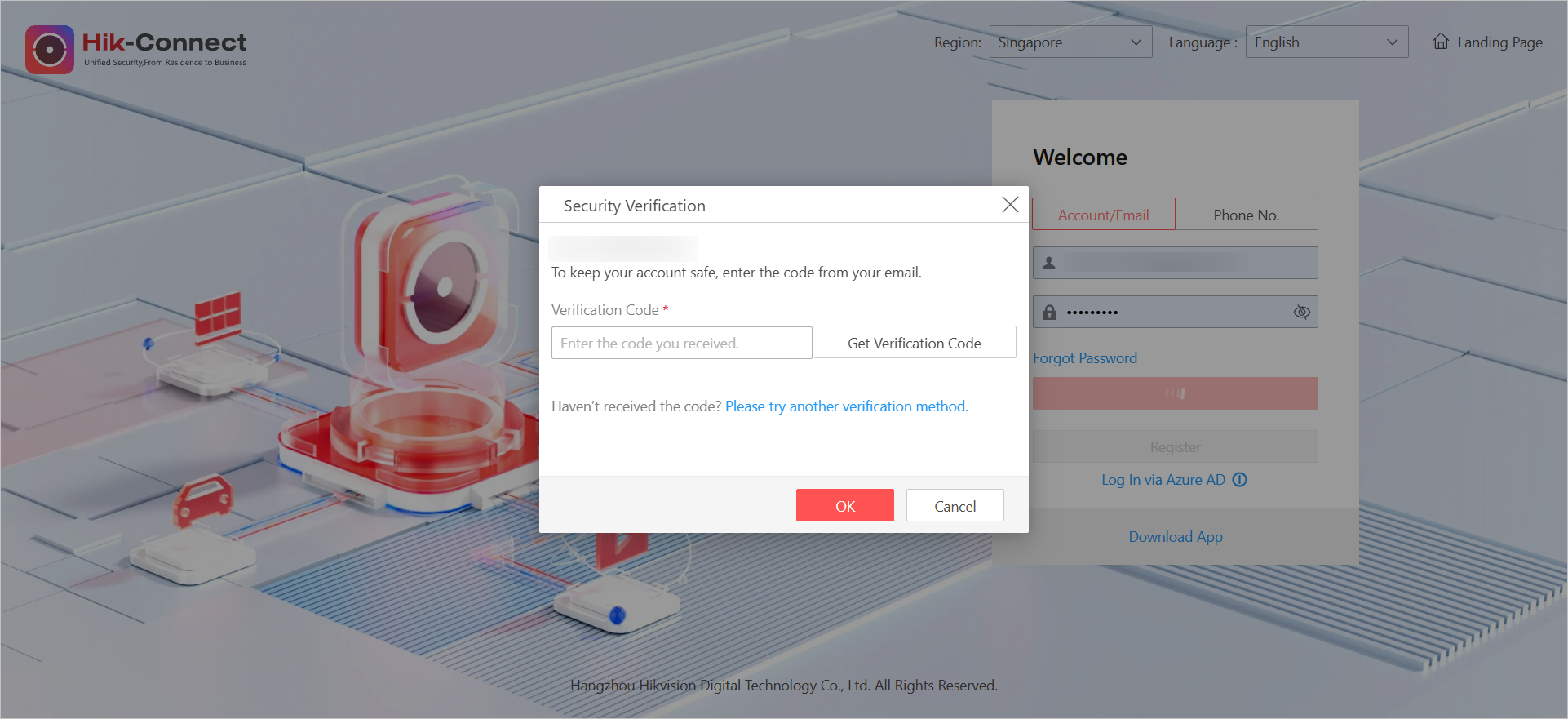
After entering the correct username and password, the system will require a second verification step.
Figure 11 Verification Required -
A verification code will be sent by default to your registered email (or phone number). You may also have the option to receive a push notification on another trusted app device.
-
Enter the correct code to log in successfully. You can choose to add the current device to your list of trusted devices, so future logins from this device won't require the second step.
-
-
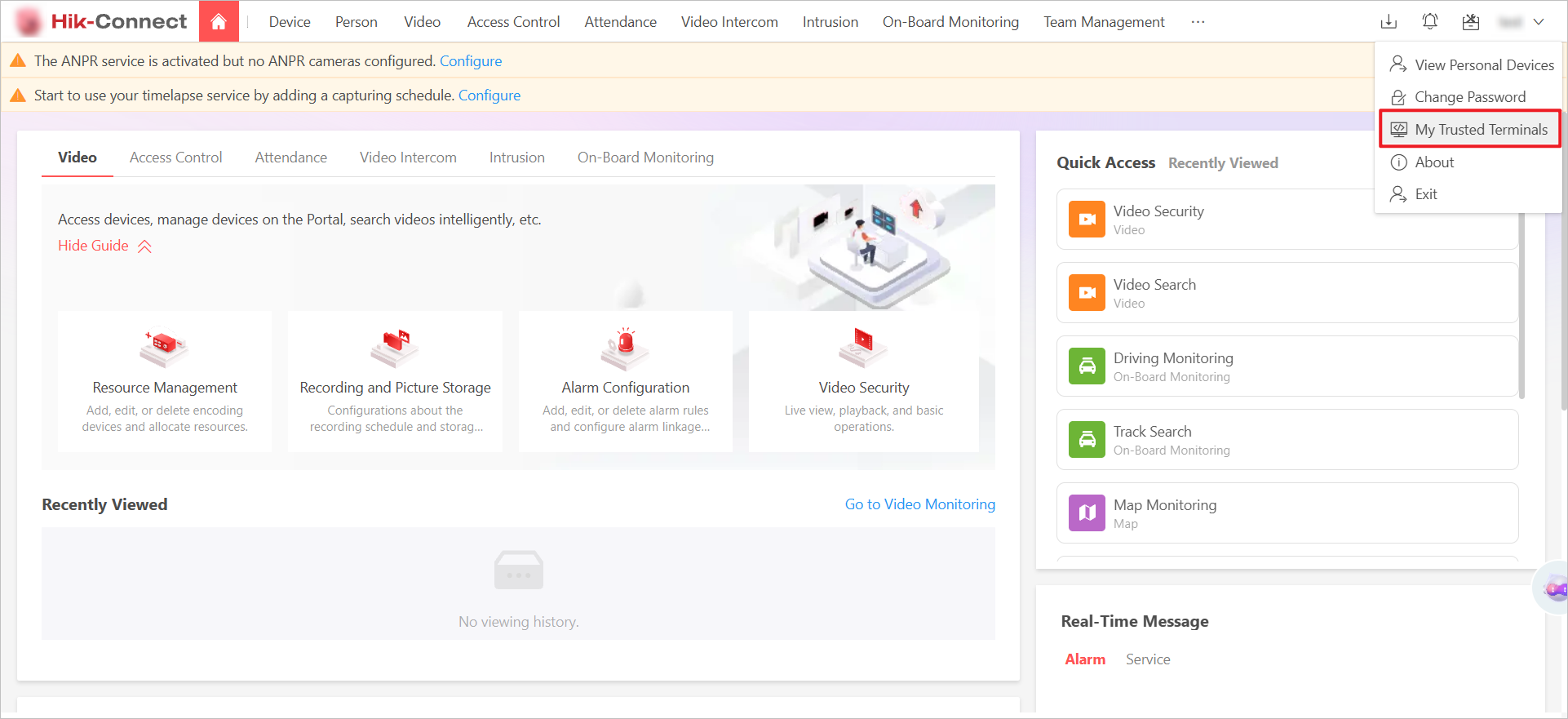
Managing Trusted Devices: After logging in, you can view and manage your list of trusted devices within the "Me" or account settings. You can see device info, login location and time, and remove devices you no longer use (you cannot remove the device you are currently using).
Figure 12 View Trusted Terminals
[Improvement] Intercom
Overview
-
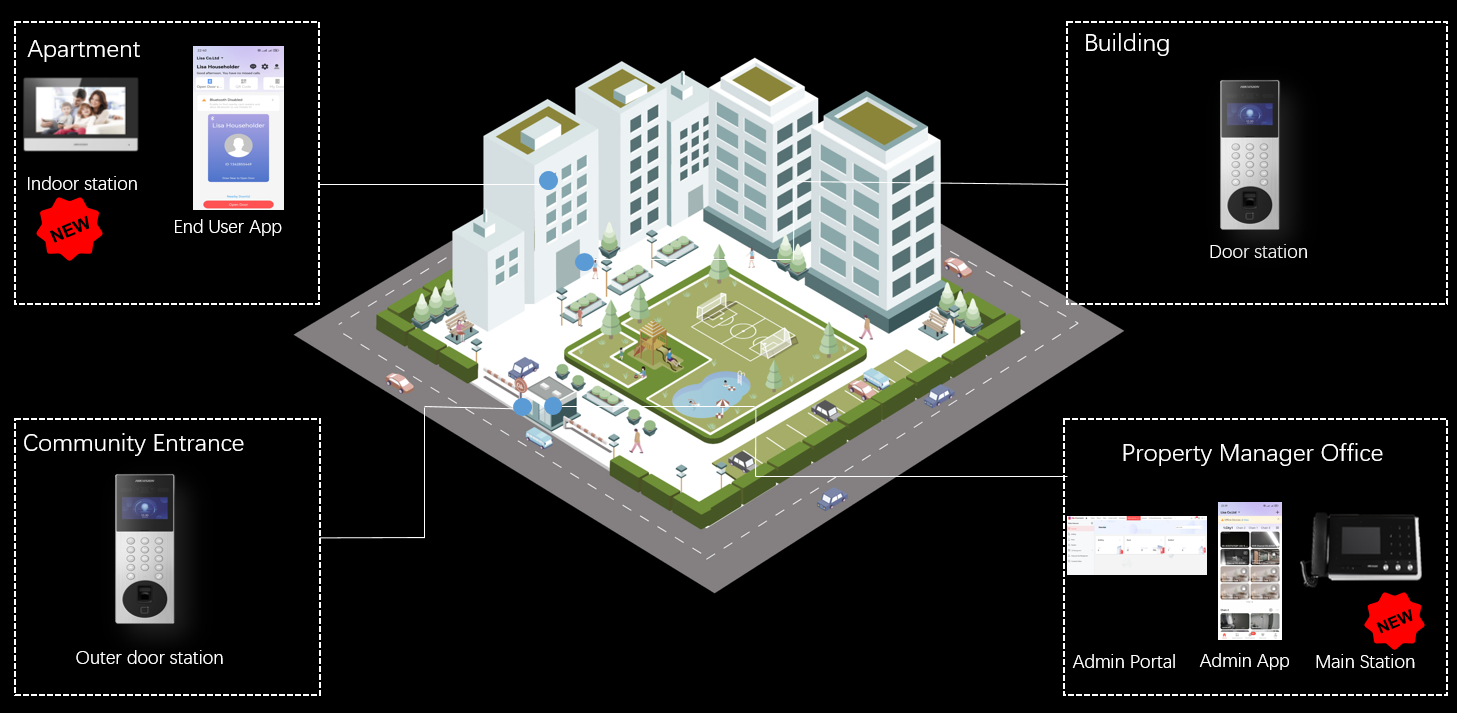
This release supports adding indoor and main stations to the cloud, eliminating the need for devices to be on the same local network. Each unit only requires internet access.
Key Benefits:
-
Reduced Wiring: Cuts cabling costs and simplifies installation, speeding up projects.
-
Easy Expansion: Add stations on demand, and the setup takes about 10 minutes, improving resident satisfaction.
-
-
This version adds indoor stations for answering door station calls, complementing the existing app-based option. This improves accessibility for users like children and the elderly who may not use smartphones.
Compatible with More Devices
Compatible with KD8005 Door Stations
|
Product |
Model |
|---|---|
|
KD8 Series Modular Door Station |
DS-KD8005-IME1 |
|
KD8 Series Modular Door Station |
DS-KD8005-IME1/S |
Compatible with KD8003 Door Stations
On the app, if indoor stations are added (required), you can now add the DS-KD8003 door stations for video intercom calls. Simply use the app to add the device via QR code, SADP search, or serial number. Once added, you can receive call notifications, conduct two-way video/audio conversations, and view call history.
Compatible with KV8 Series Villa Door Station
Compatible with KV8 Series Villa Door Station
|
Device Type |
Device Model |
|---|---|
|
Villa Door Station |
DS-KV8114-NWE1 |
|
Villa Door Station |
DS-KV8114-NWQE1 |
|
Villa Door Station |
DS-KV8114-KWE1 |
|
Villa Door Station |
DS-KV8114-KWQE1 |
|
Villa Door Station |
DS-KV8114T-NWQE1 |
|
Villa Door Station |
DS-KV8114T-KWQE1 |
View Event Recordings
On the Portal, you can now view event recording playback for the door stations. Simply log in, go to , find your event, and start playback from 5 seconds before the event.
New Event Types on HCT
On the Portal and App, supports new event types for KV8 door stations. Supported event types include Scream Detection, Glass Break Detection, Crying Detection, Gunshot Detection, Intrusion Detection, Line Crossing Detection, Region Entering, and Person Falling Down Detection.
Public Network Solution for Communities
New Hierarchy: Group - Community (Optional) - Building - Unit (Optional) - Room
-
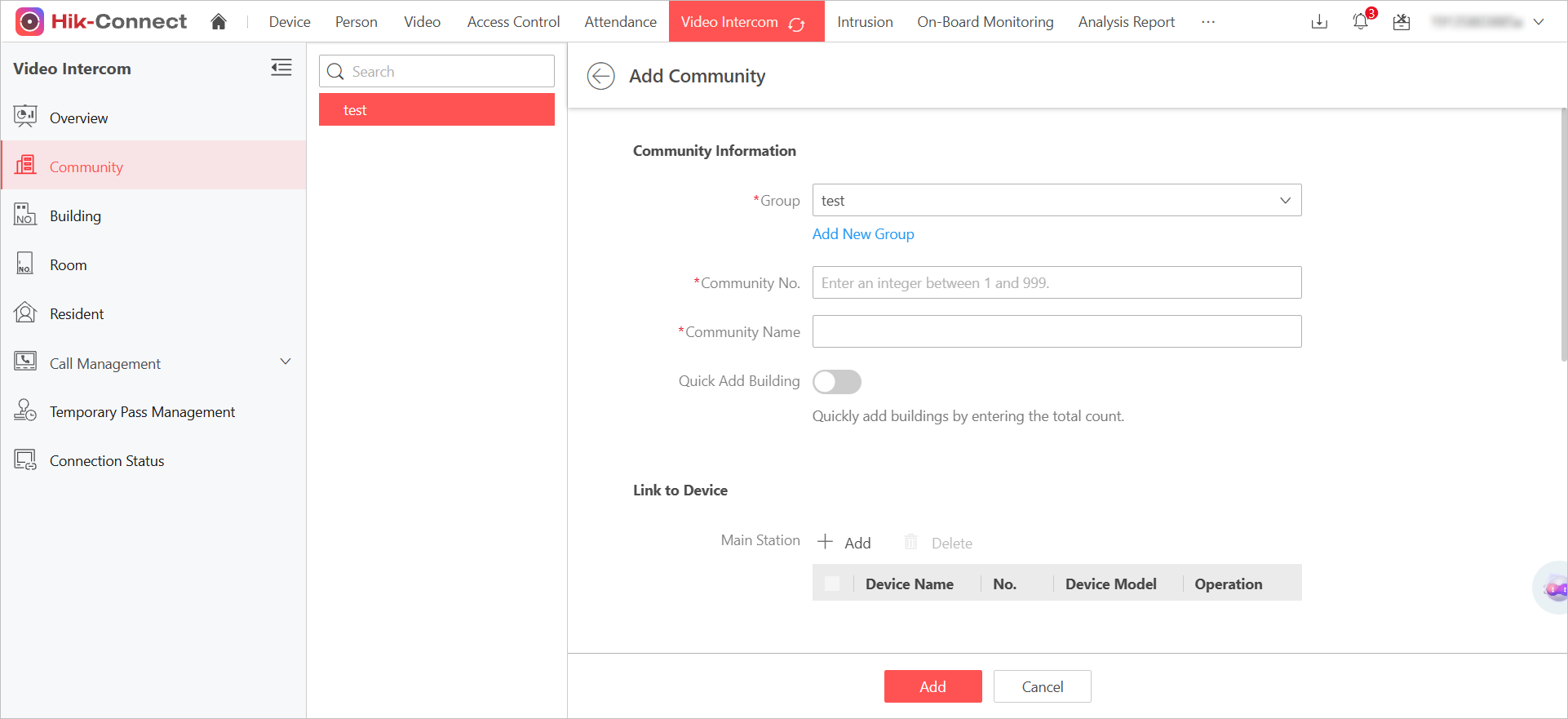
On the Portal, this version introduces the Community Management feature. You can add communities on the Portal and organize them in a hierarchy of Group - Community (Optional) - Building - Unit (Optional) - Room.
Figure 14 Add Community -
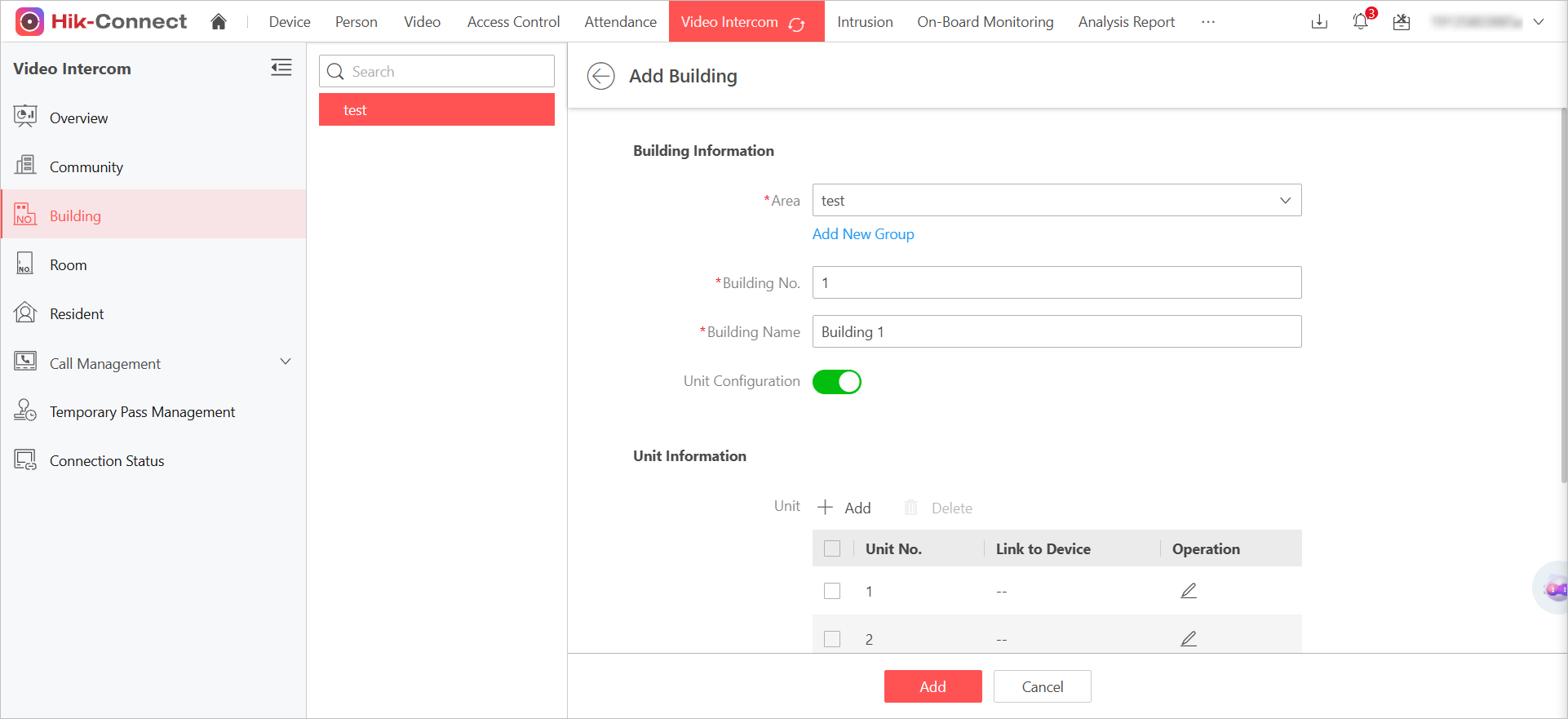
On the Portal, you can now manage buildings with unit-level organization, assigning rooms to specific units and linking devices like door stations.
Figure 15 Add Unit -
On the Portal and App, this version supports selecting specific communities, buildings, and units (if configured) when adding residents.
Figure 16 Select Housing Information When Adding Residents
Community Device Management
-
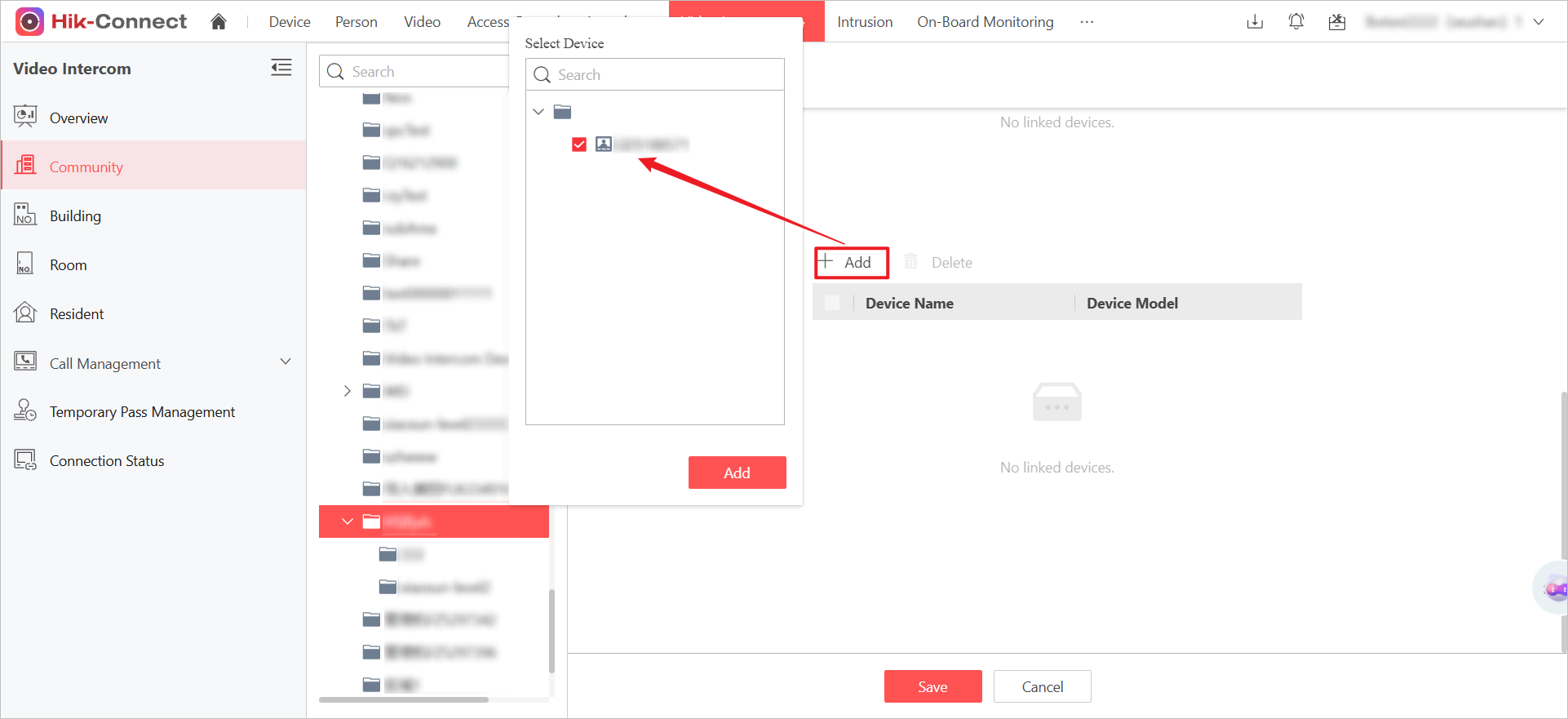
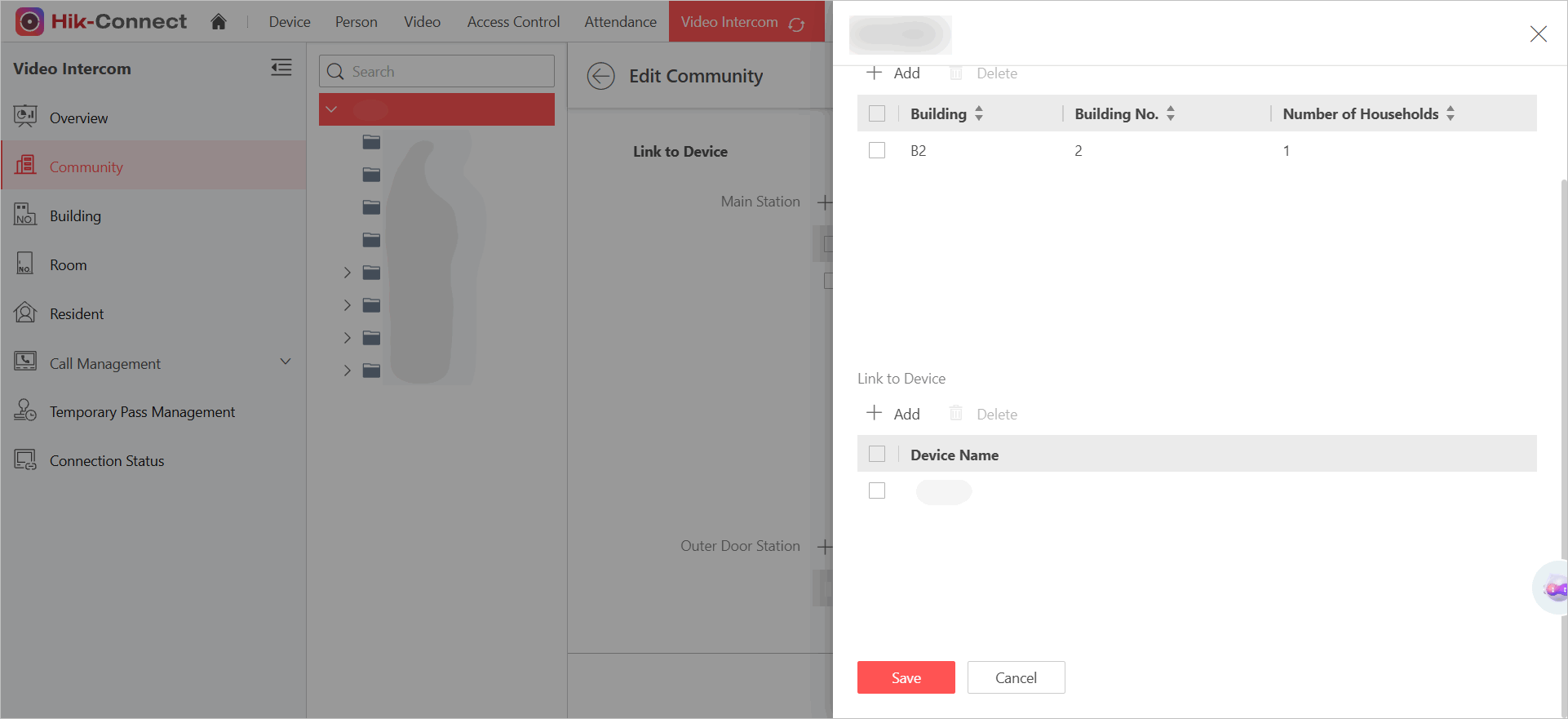
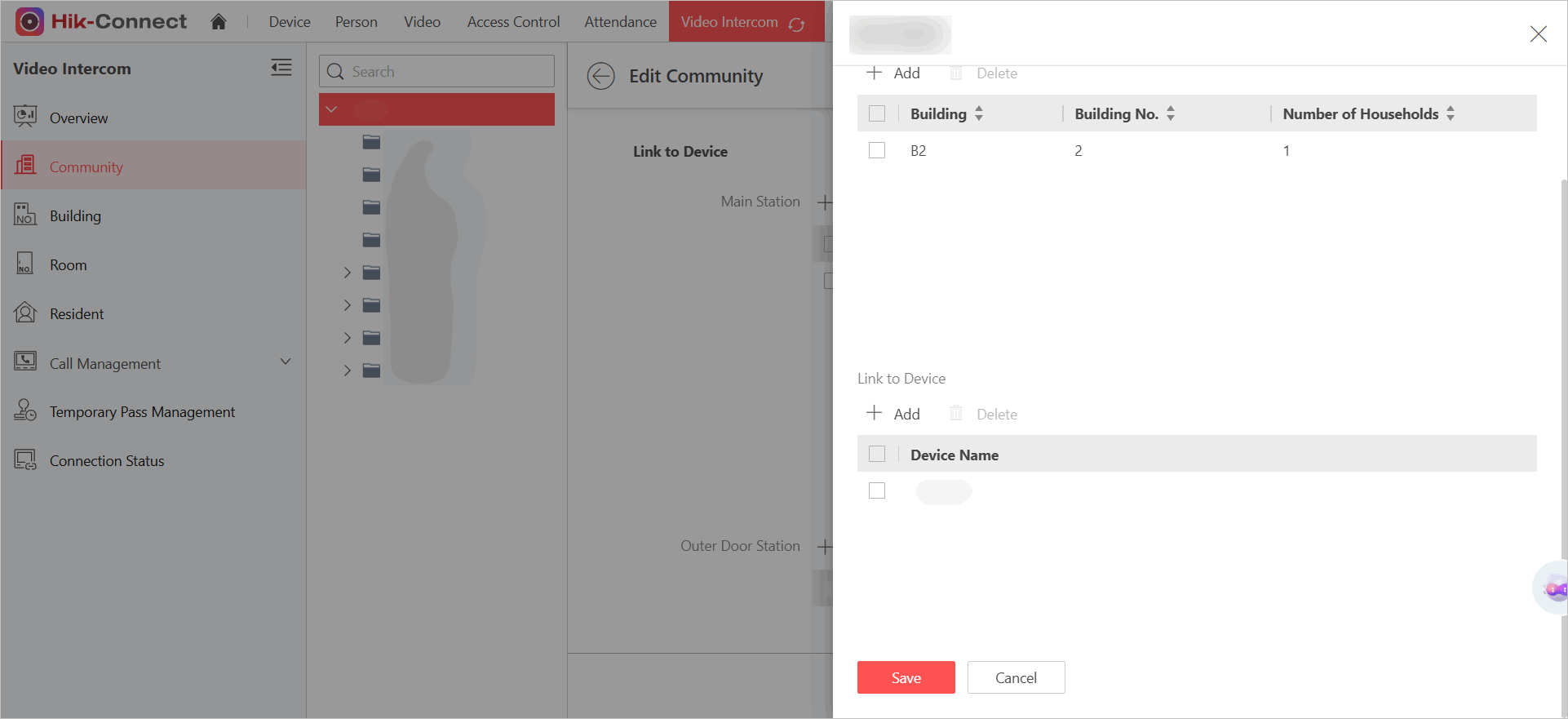
On the community details page of the Portal, you can now link outer door stations within communities.
Figure 17 Link Outer Door Station -
On the Portal, you can now configure main stations for communities and assign them specific buildings to enable calls between main stations and devices linked with the building (door stations, indoor stations, and residents' app).
Figure 18 Link Main Station -
On the Portal, you can link cameras with main stations, and start live view on main stations.
Figure 19 Link Camera with Main Station -
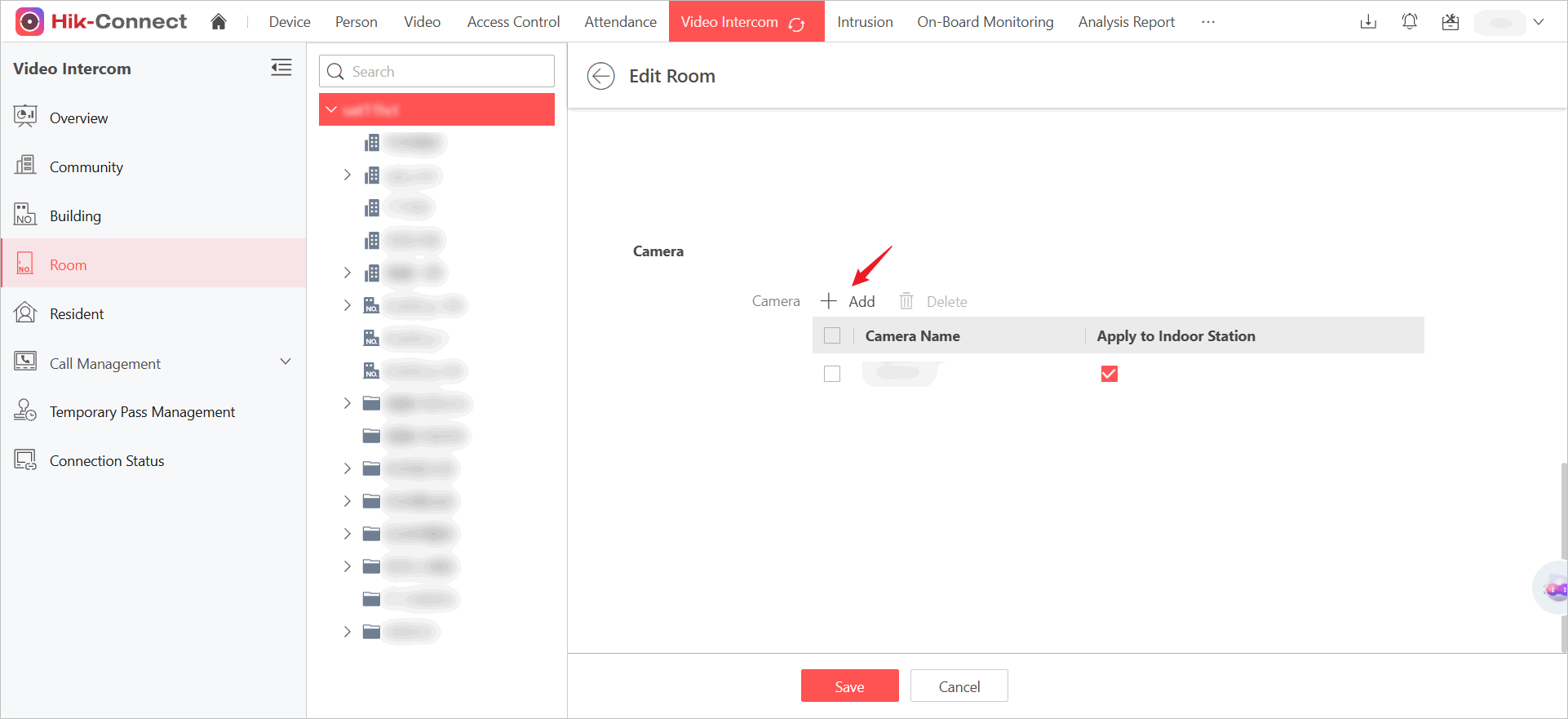
On the Portal, you can link cameras with indoor stations, and start live view on indoor stations.
Figure 20 Link Camera with Indoor Station
Enhanced Call System: Cloud-Based Connectivity Across All Scenarios
-
This update transitions all call scenarios from LAN-dependent connections to cloud-based communication, significantly expanding accessibility and flexibility.
Table 2 Call Types Call Type
This Version
Older Versions
Visiting Calls: From Visitors to Residents
Door Station to app / indoor station (friendlier for children and the elderly) via the cloud server
Door Station to app via the cloud server
Visiting Calls: From Visitors to Security/ Property Manager
Door station to main station via the cloud server
Door station to main station via LAN
Property Service Calls: From Residents to Security/ Property Manager
Indoor station / app to main station via the cloud server
Indoor station to main station via LAN
Property Service Calls: From Security/ Property Manager to Residents
Main station to indoor station / app via the cloud server
Main station to Indoor station via LAN
Calls Between Households
Indoor station to indoor station via the cloud server
Indoor station to indoor station via LAN
Calls Between Managers
Main station to main station via the cloud server
Main station to main station via LAN
-
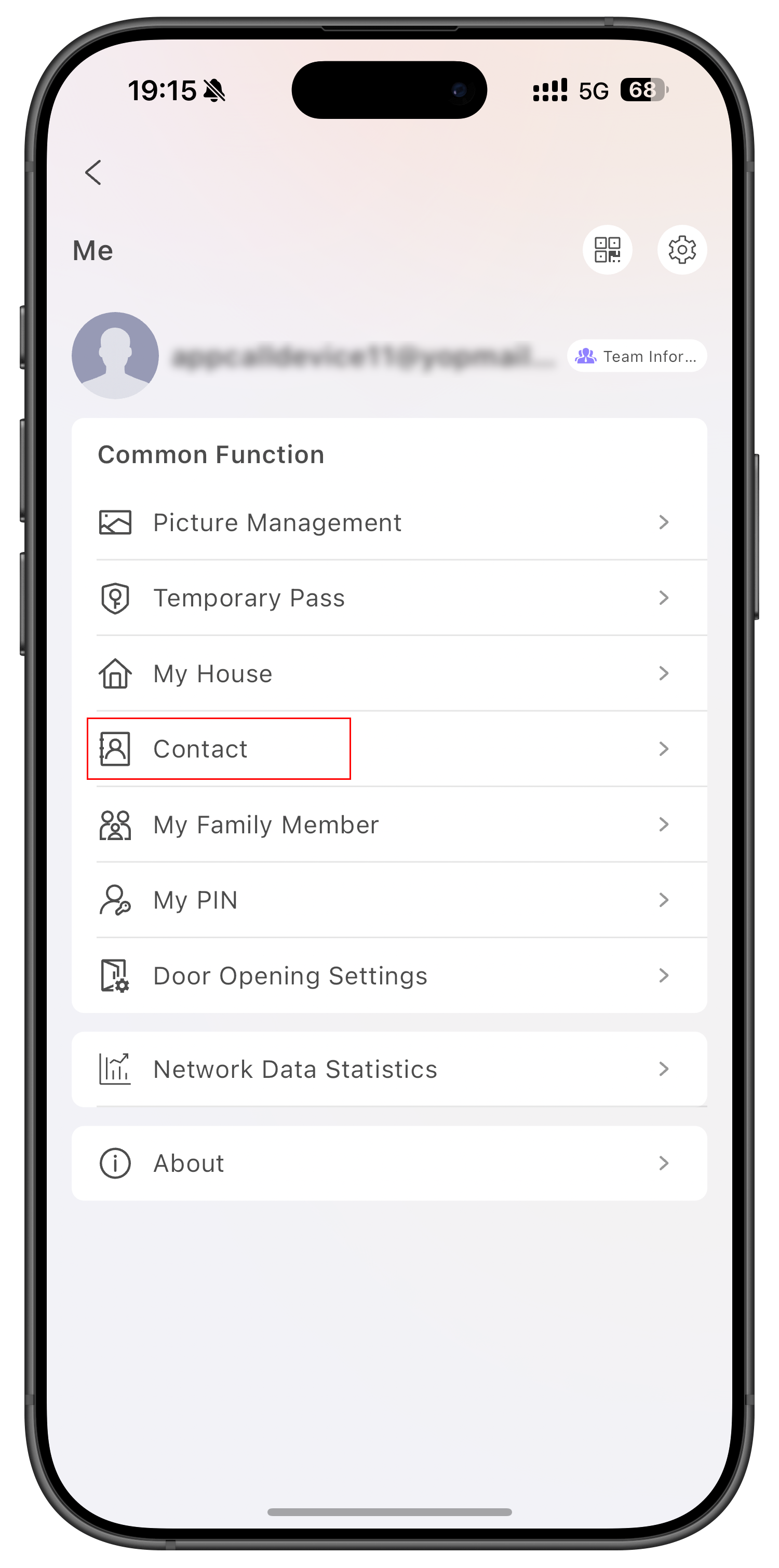
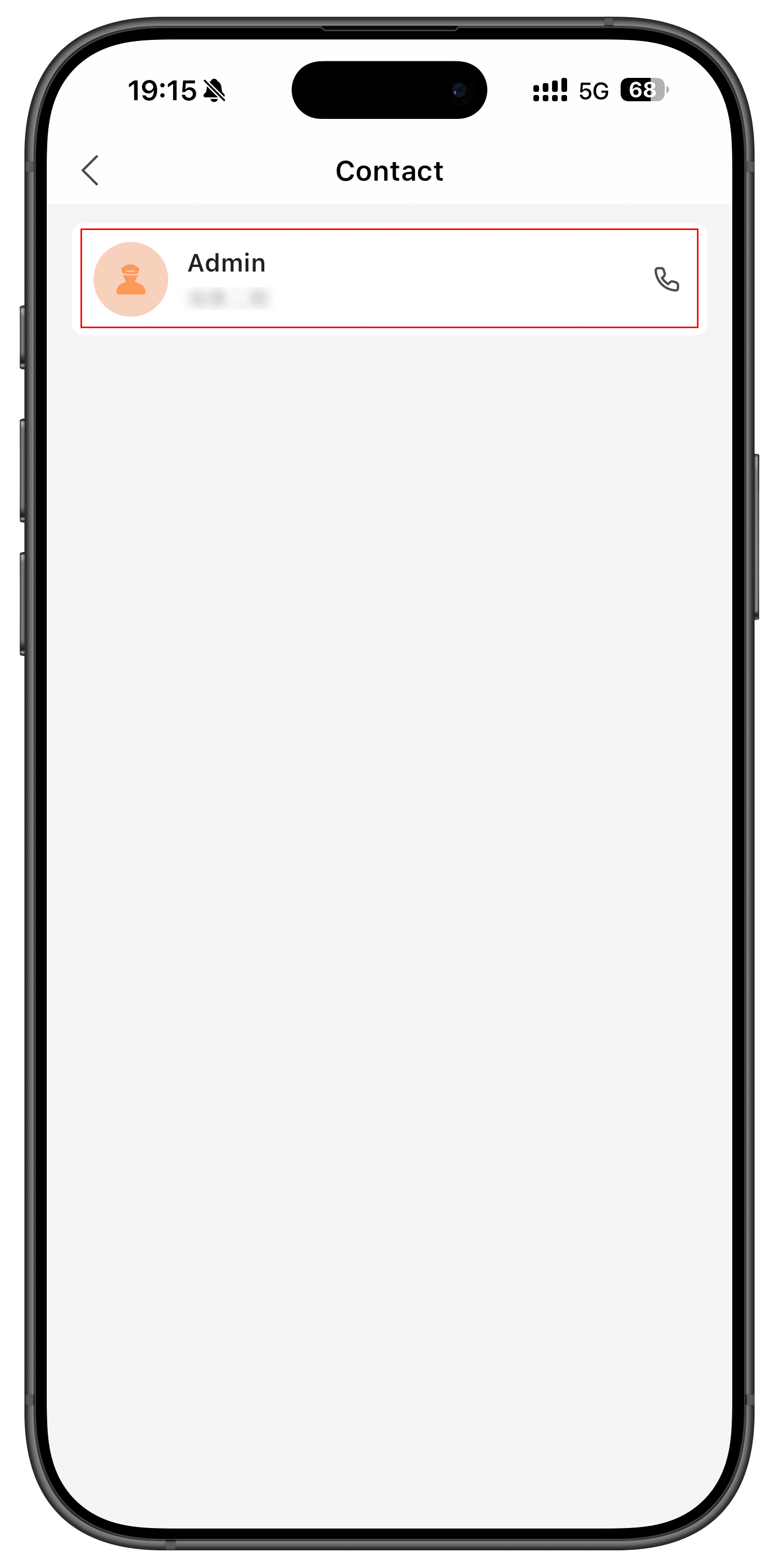
Residents can now call main stations on the app.
Tap ContactCall Main Station
More Call History Details
-
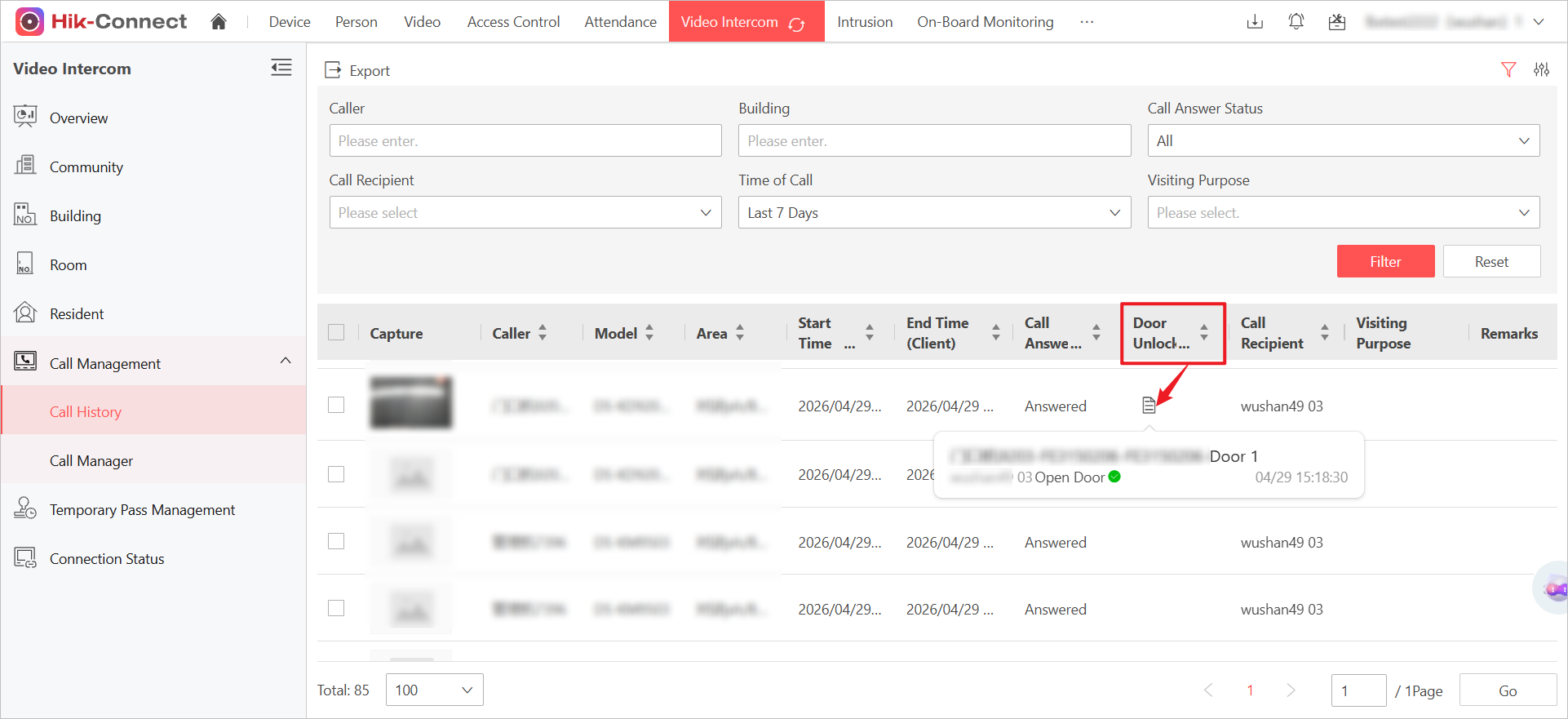
On the Portal, you can now view door opening records in call details, showing who opened the door (user or device) during the call.
Figure 21 Door Unlock Records -
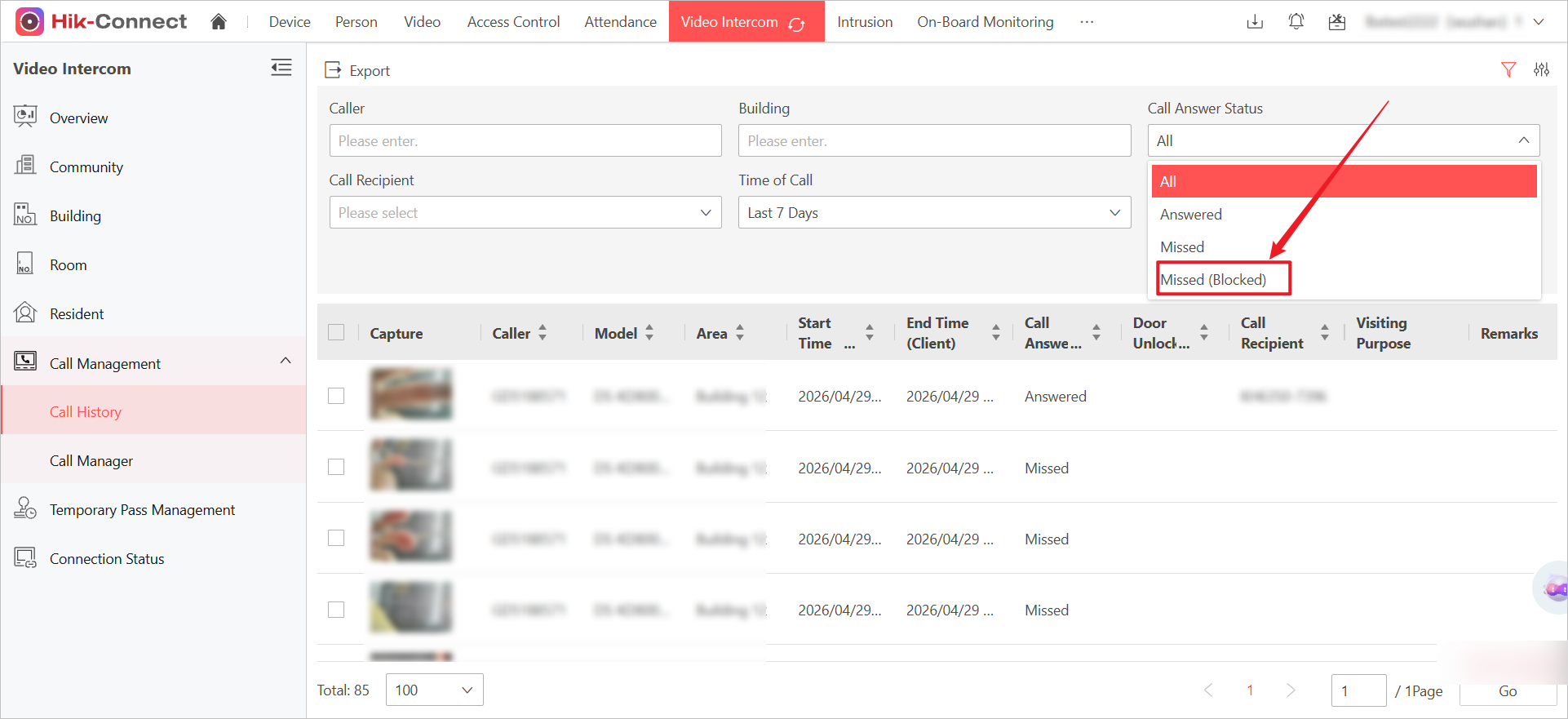
You can now set a blocklist in the App or on Indoor Stations to block calls from specific rooms, with syncing across platforms. Blocked calls show as "blocked" in call records.
Figure 22 Filter Blocked Calls
Support Both Villa and Apartment Scenario
Supports adding KV-series villa door stations to HC-T. Multiple villas be centrally managed under the platform. Property managers can perform key operations remotely, including:
-
Adding and configuring devices
-
Managing residents (add, edit, or delete)
-
Monitoring device health status
-
Answering calls from residents or visitors
Batch Configuration for Improved Delivery Efficiency
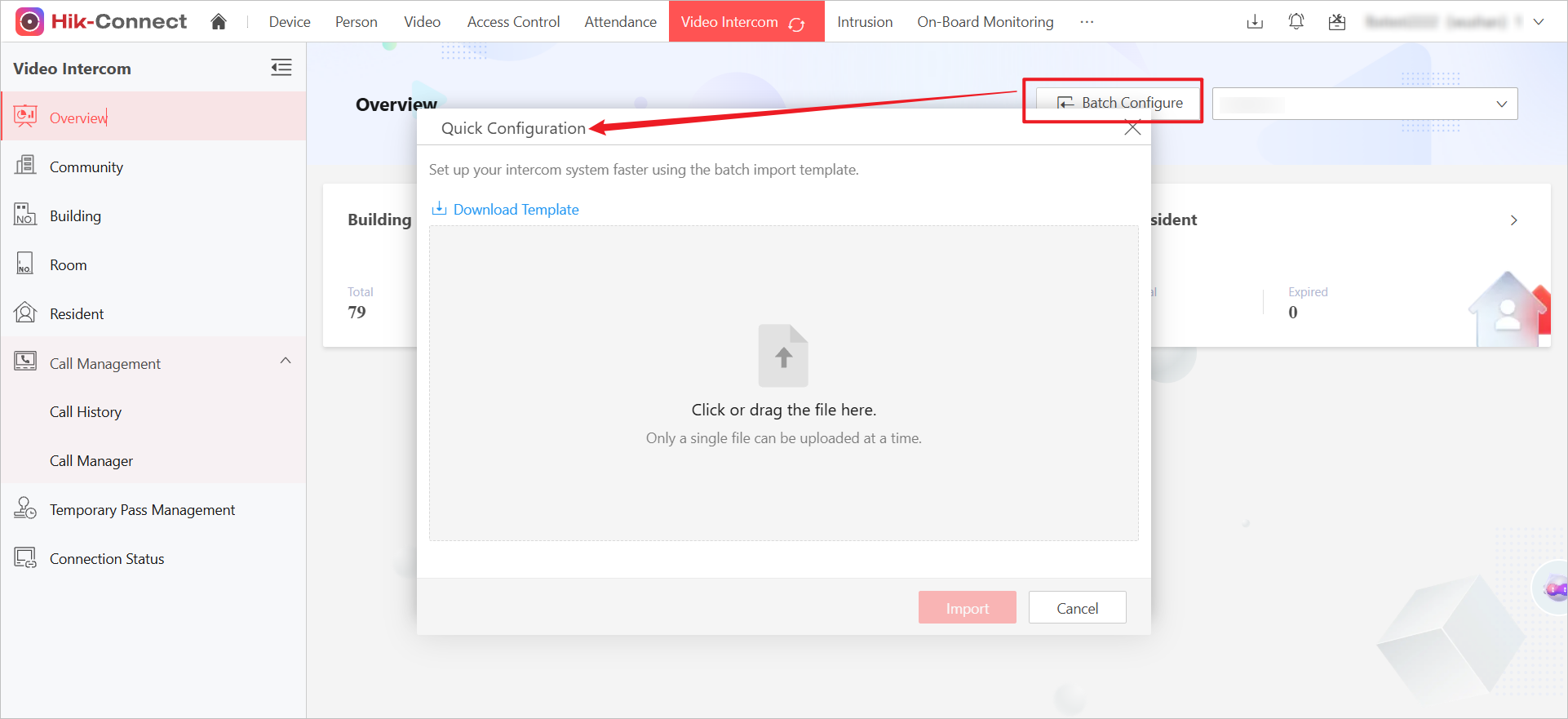
On the Portal, you can now use an Excel template to batch import configurations for intercom systems in residential buildings. Simply download the template, fill in device and personnel details, upload the file, and the system will automatically handle binding and additions.
Events and Alarms
-
On the App, this version supports receiving alarm messages from linked indoor stations (e.g., tamper, smoke detector).
-
This version supports forwarding alarm information from indoor or door stations to community main stations.
More Features for Residents on App
General
-
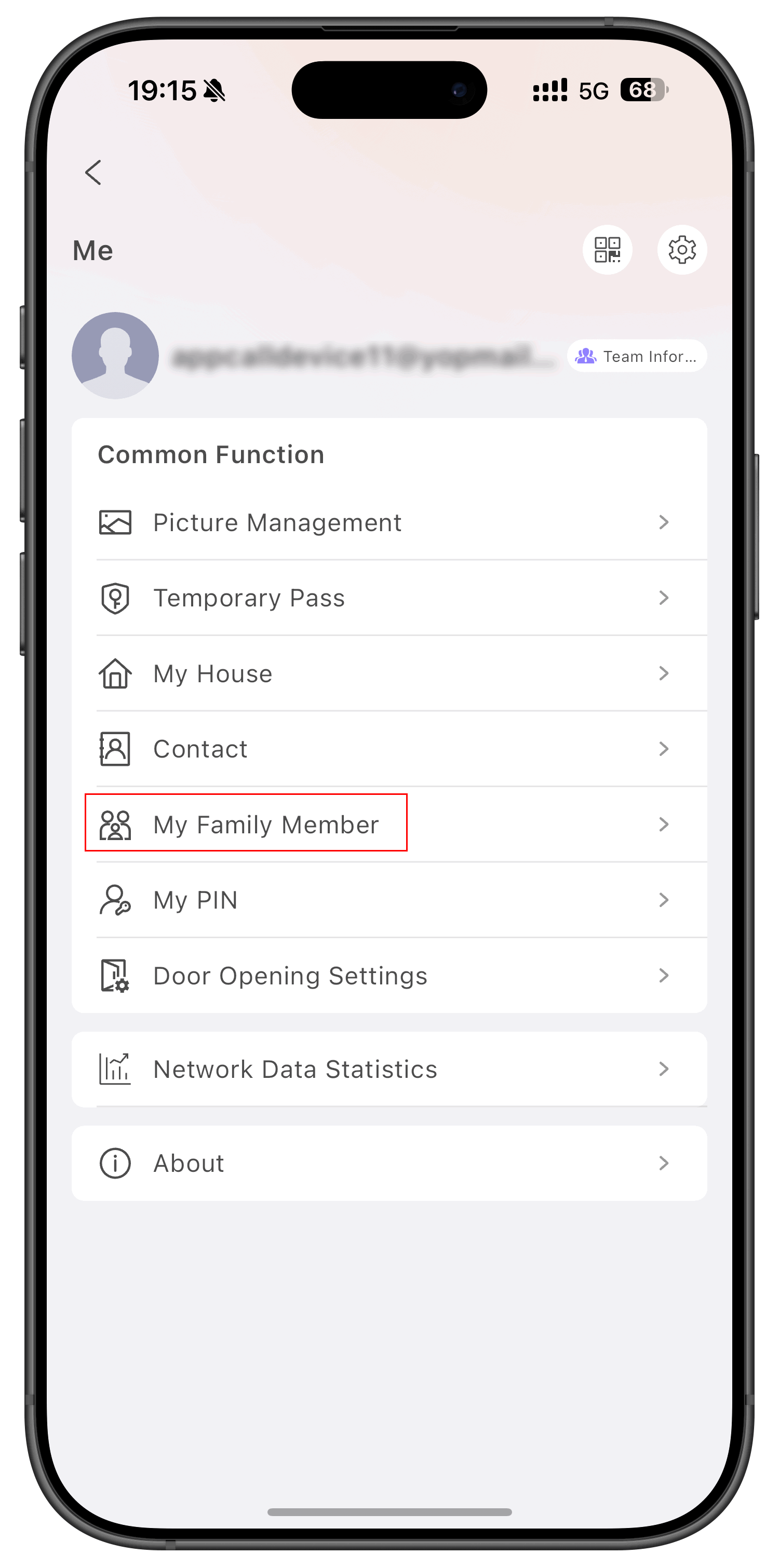
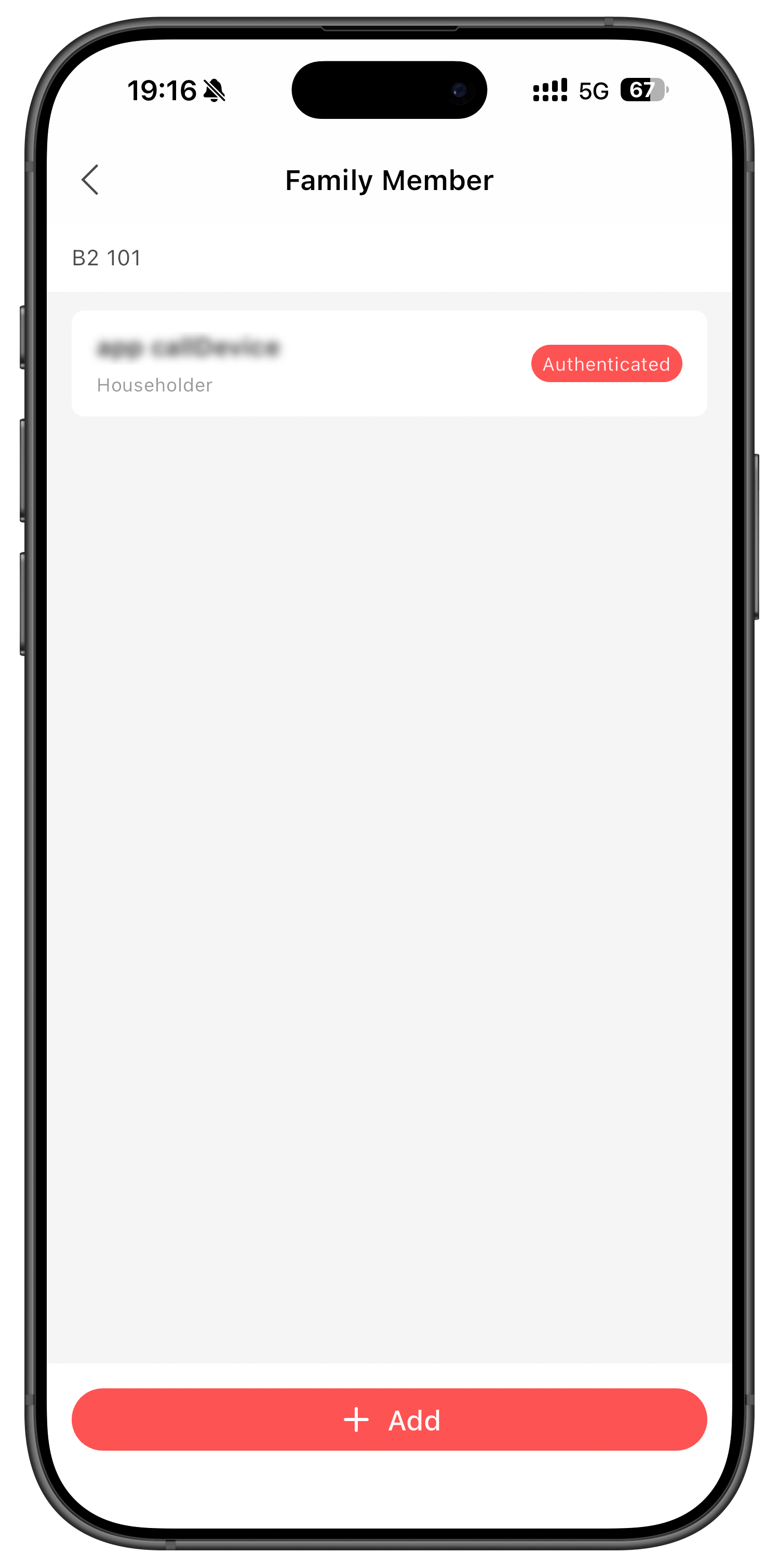
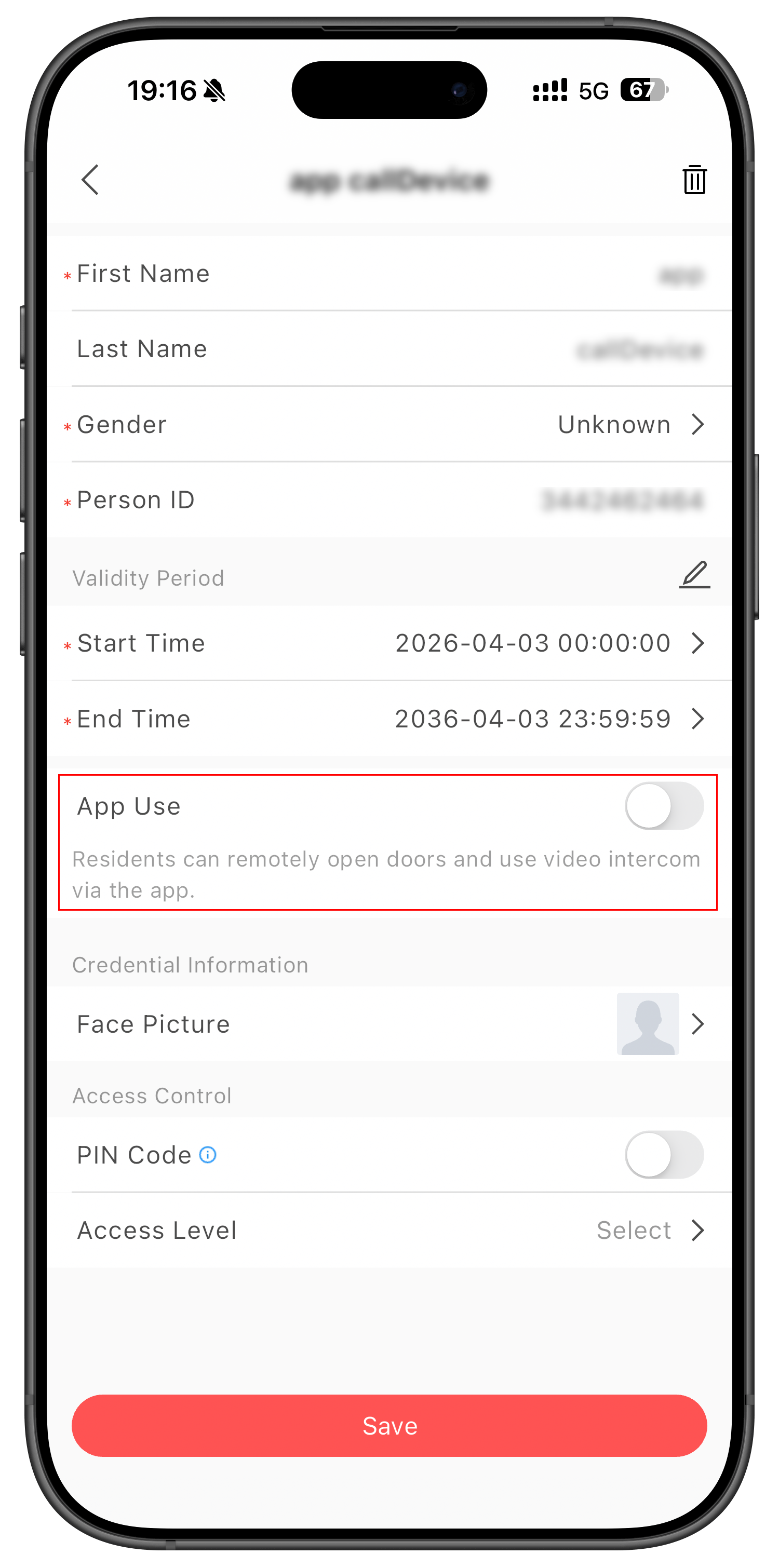
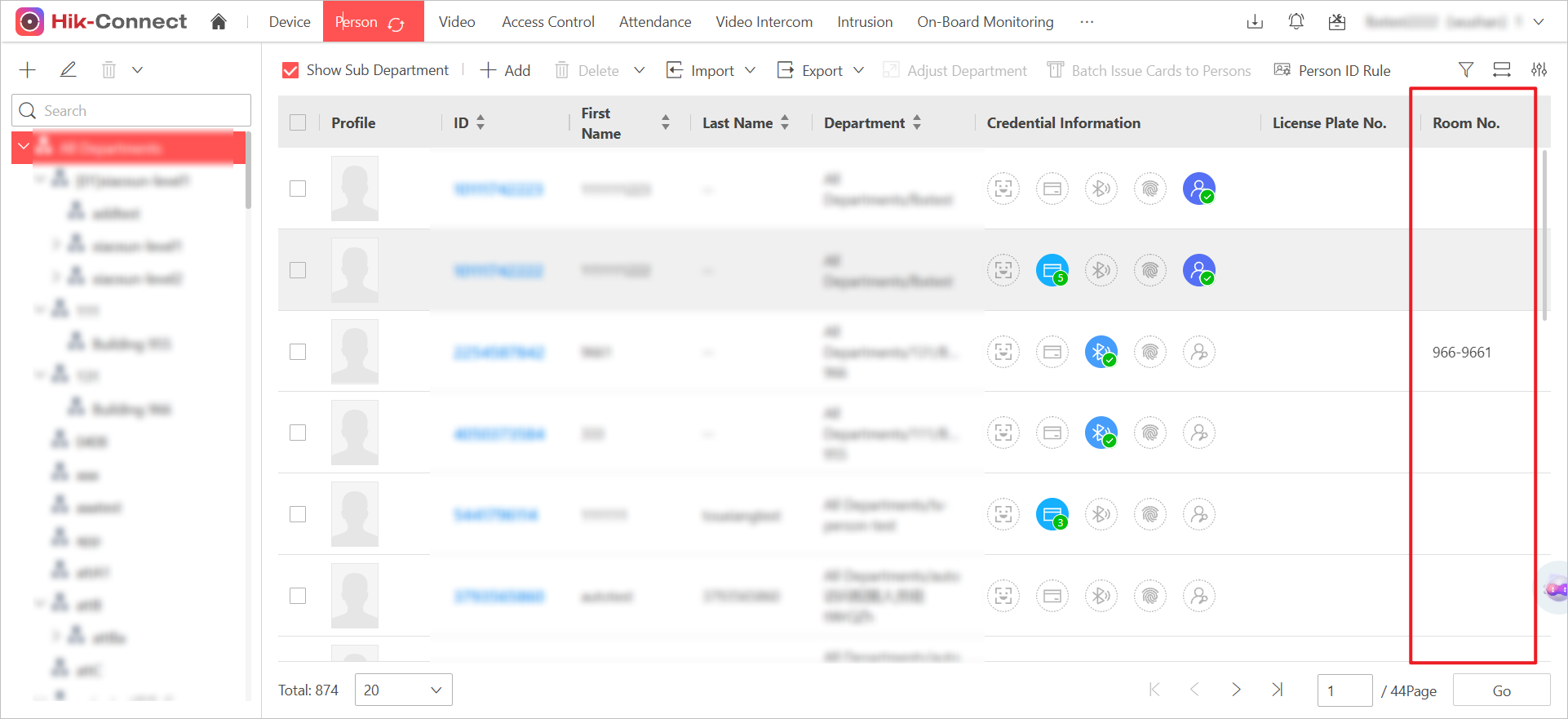
On the Portal and App, you can now see a "Room No." column in the Person Module, helping administrators identify persons not linked to any room. Additionally, deleting a resident from a room now automatically removes their person records.
Figure 25 Room No. Column -
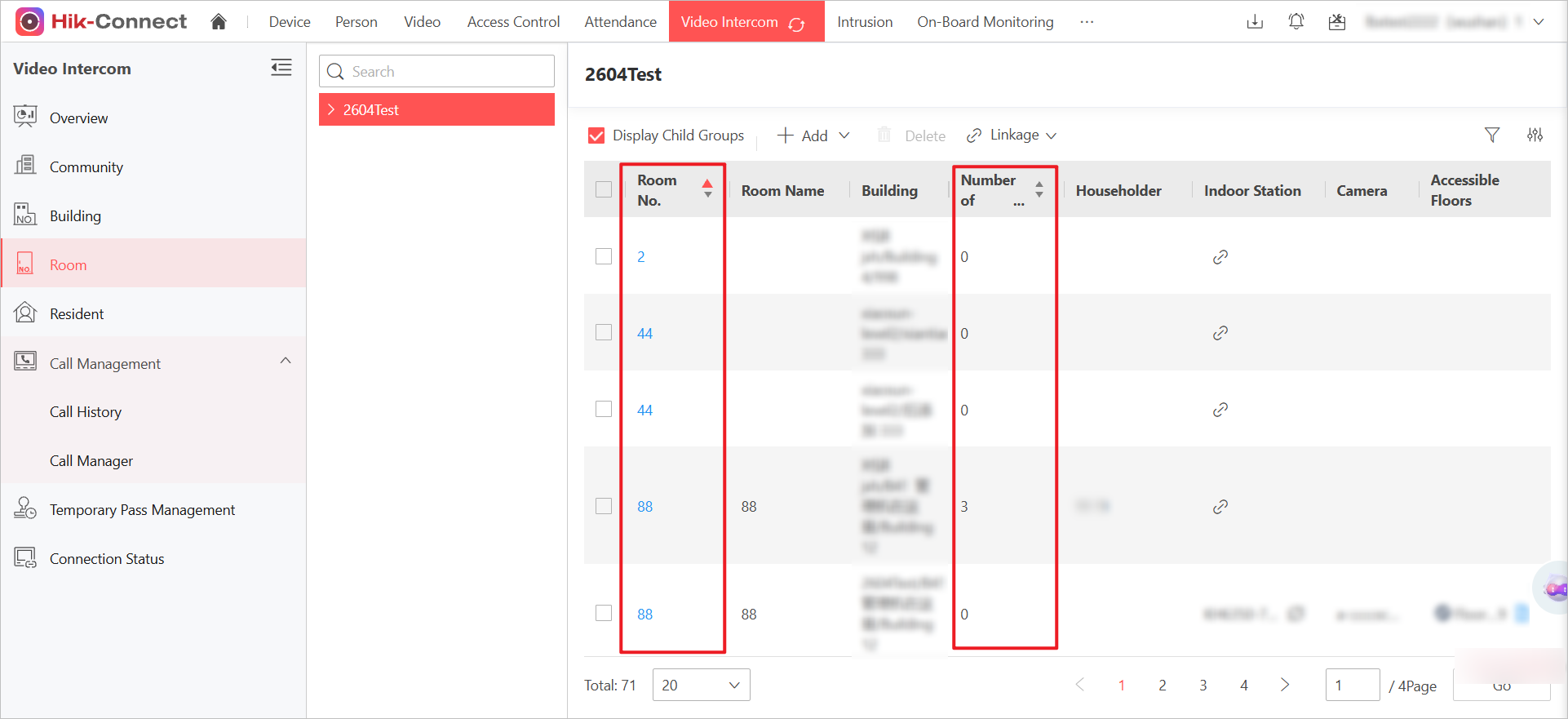
On the Room page of the Portal, the current version supports global custom sorting for both Room No. and Number of Residents, ensuring data on all pages is displayed in a continuous, unified order.
Figure 26 Sort by Room No. or Number of Residents
[Improvement] Access Control
Improvements on Access Control Records
-
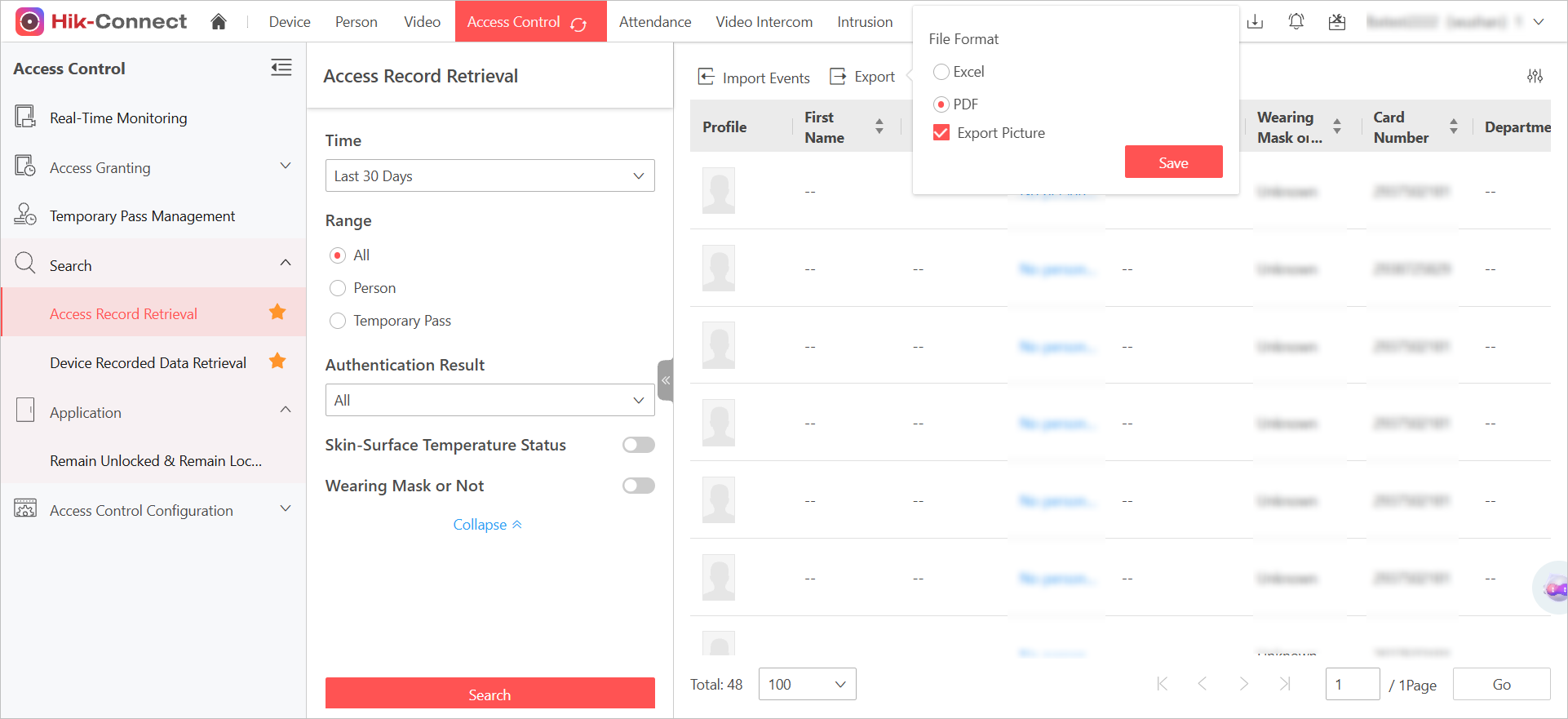
On the Portal, you can now choose to include images when exporting access control records. Search for records, click Export, and select your preferred format and image inclusion option for customized reports.
Figure 27 Export Picture Option -
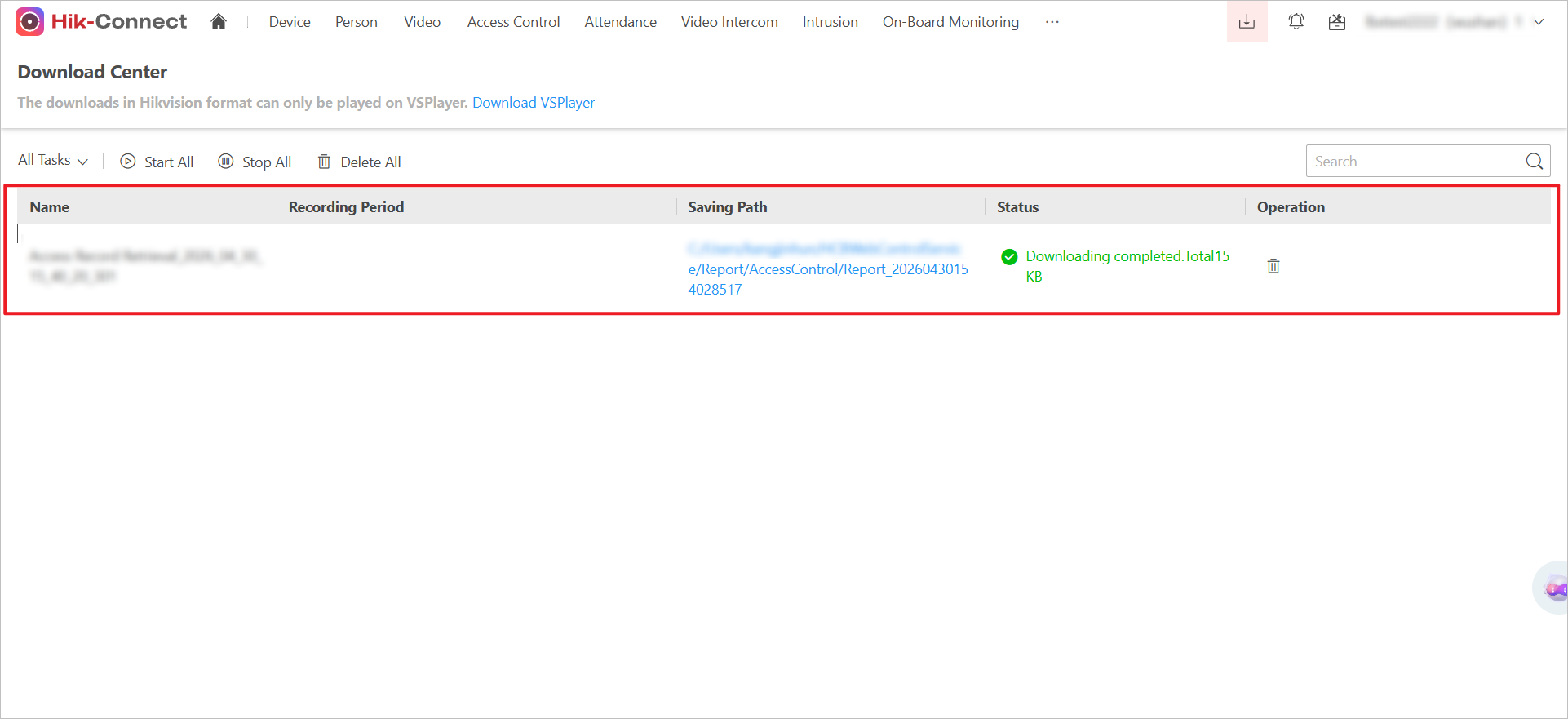
On the Portal, you can now track the progress of access control record exports in the download center. After starting an export, check the progress percentage based on record counts for better task management.
Figure 28 View Progress in Download Center -
On the Portal, you will now be prompted to refine your search conditions if access control record results exceed 10,000.
Door Open Widget
On the App, you can now add a convenient door-unlock widget directly to your phone's home screen for quick, one-touch access. Simply use your phone's widget menu to select a specific door (or device/channel), and tap the widget button to unlock via the cloud, with results shown promptly.
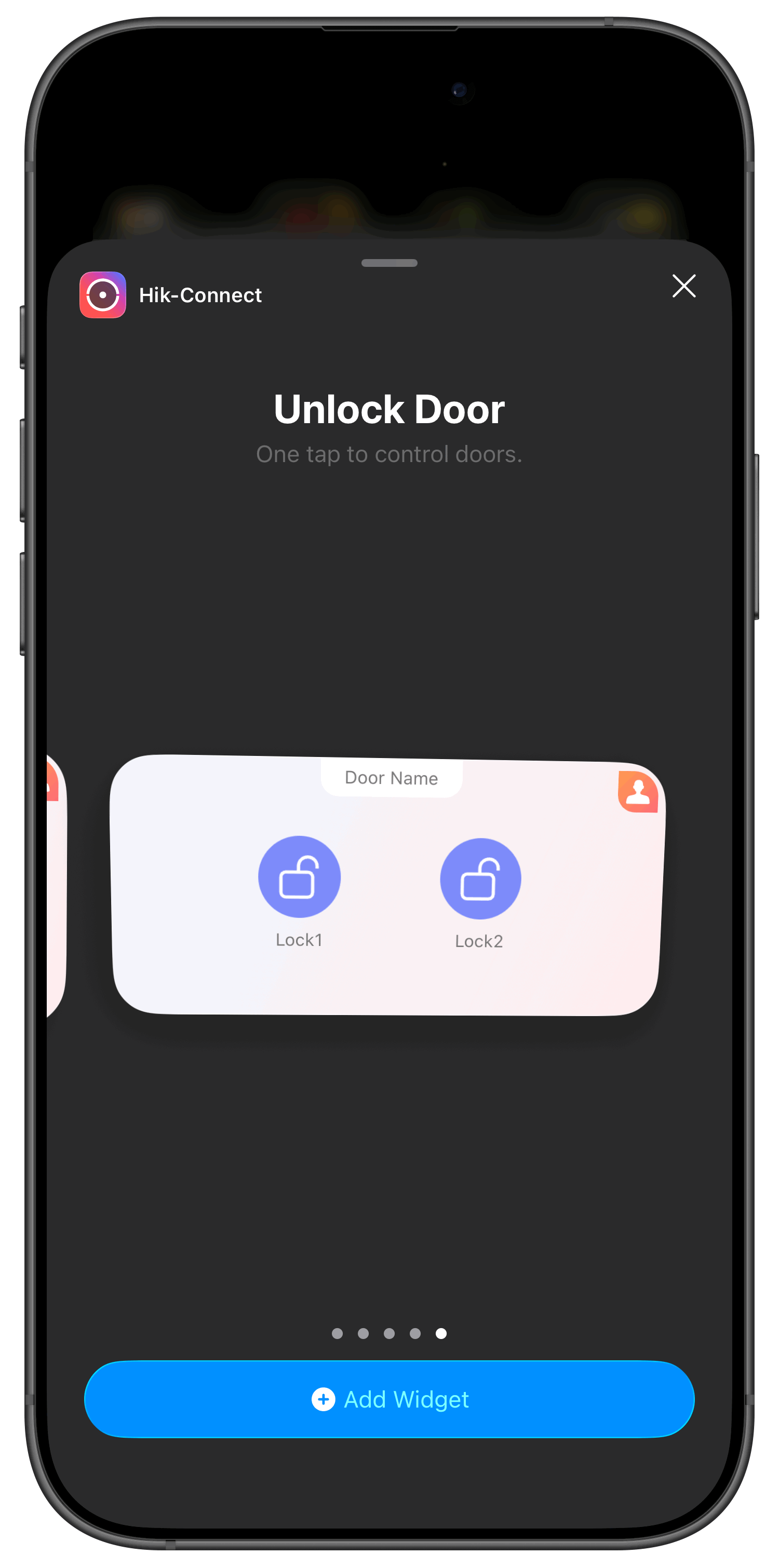
If the linked door is deleted from your account, the widget is automatically removed.
[Improvement] Video
Expansion View Remembered for Fisheye Cameras
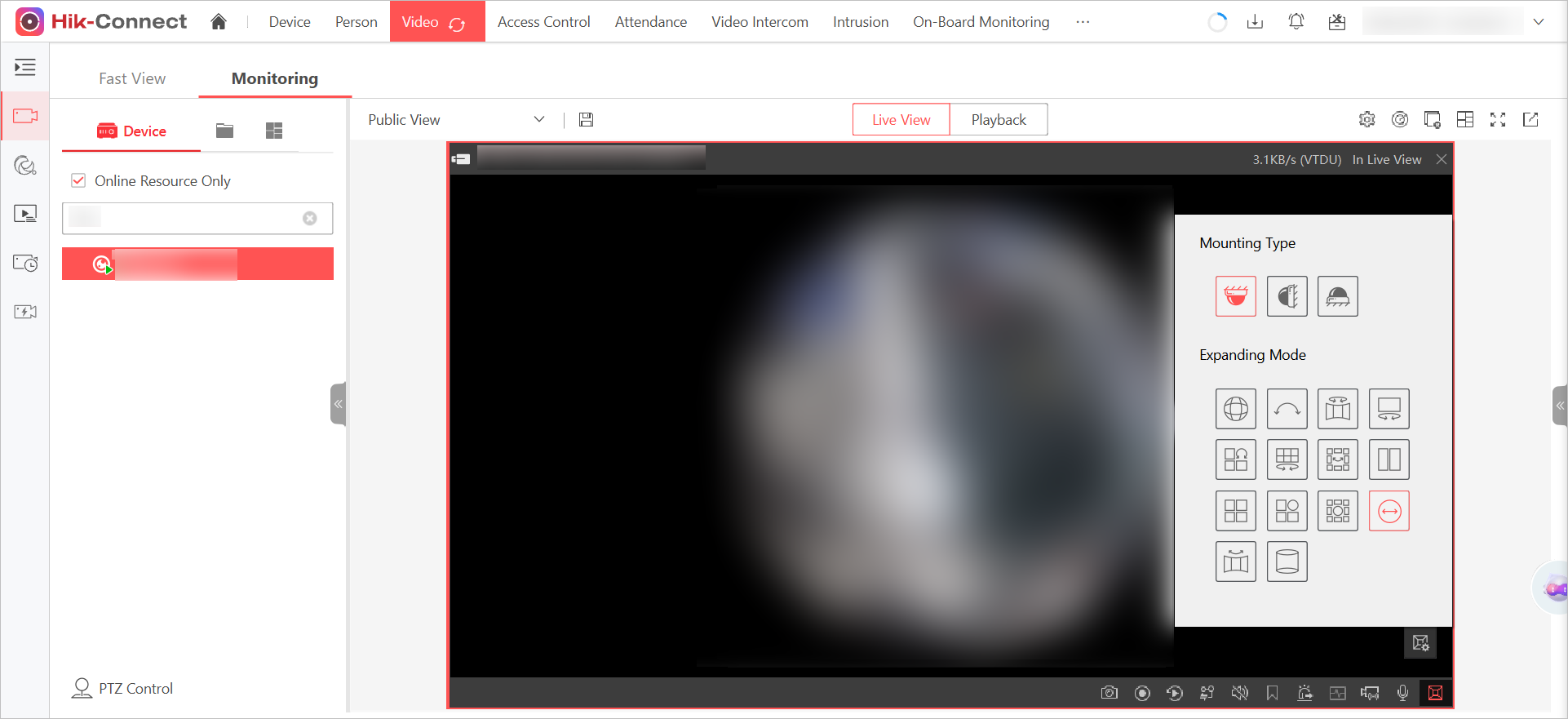
On the Portal and App, you can now have your preferred fisheye expansion view (for compatible cameras and doorbells) automatically remembered. Once you set an expansion mode, it will persist across window switches, between live view and playback, and even after re-login, saving you from manually adjusting the view repeatedly.
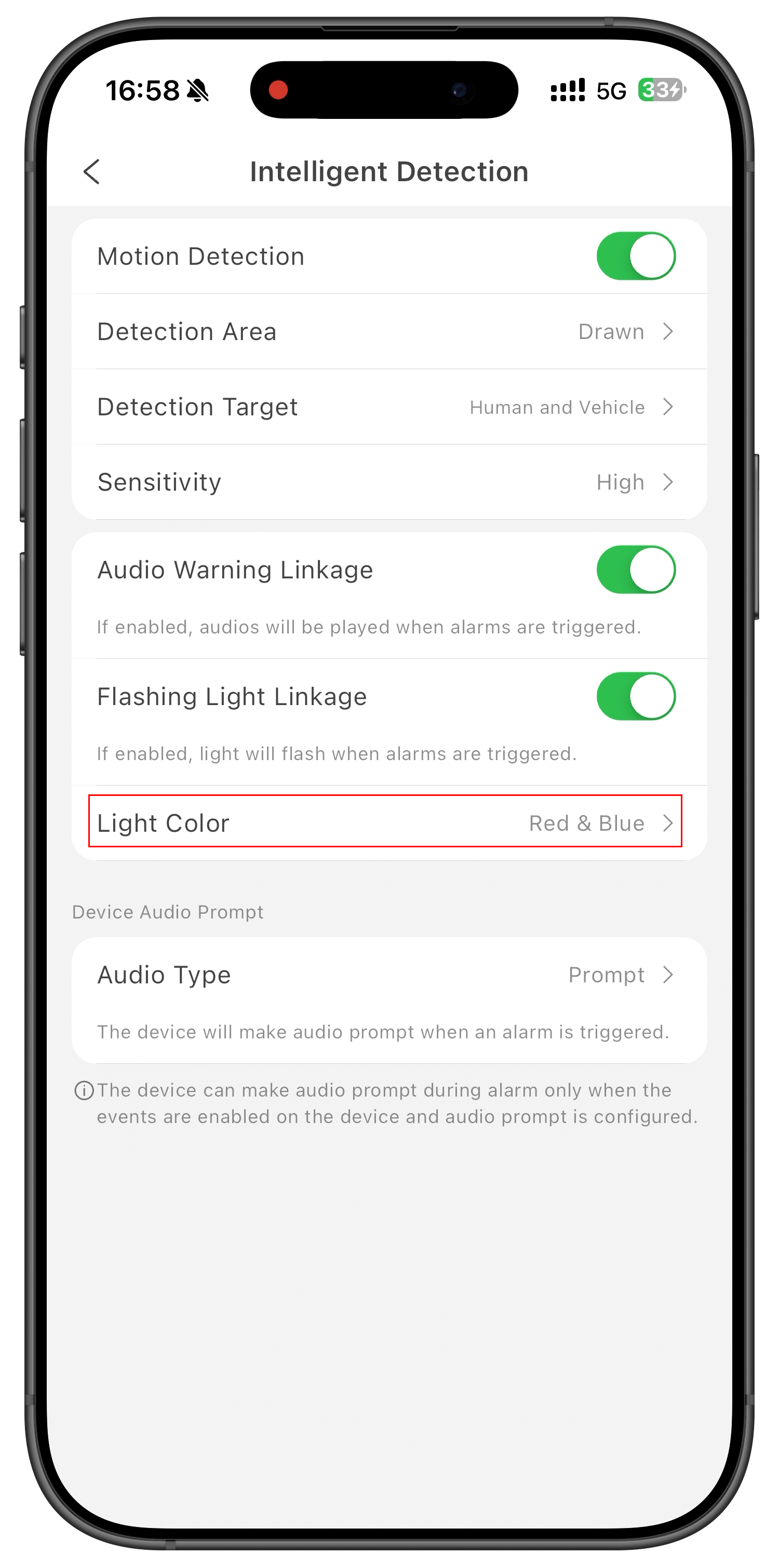
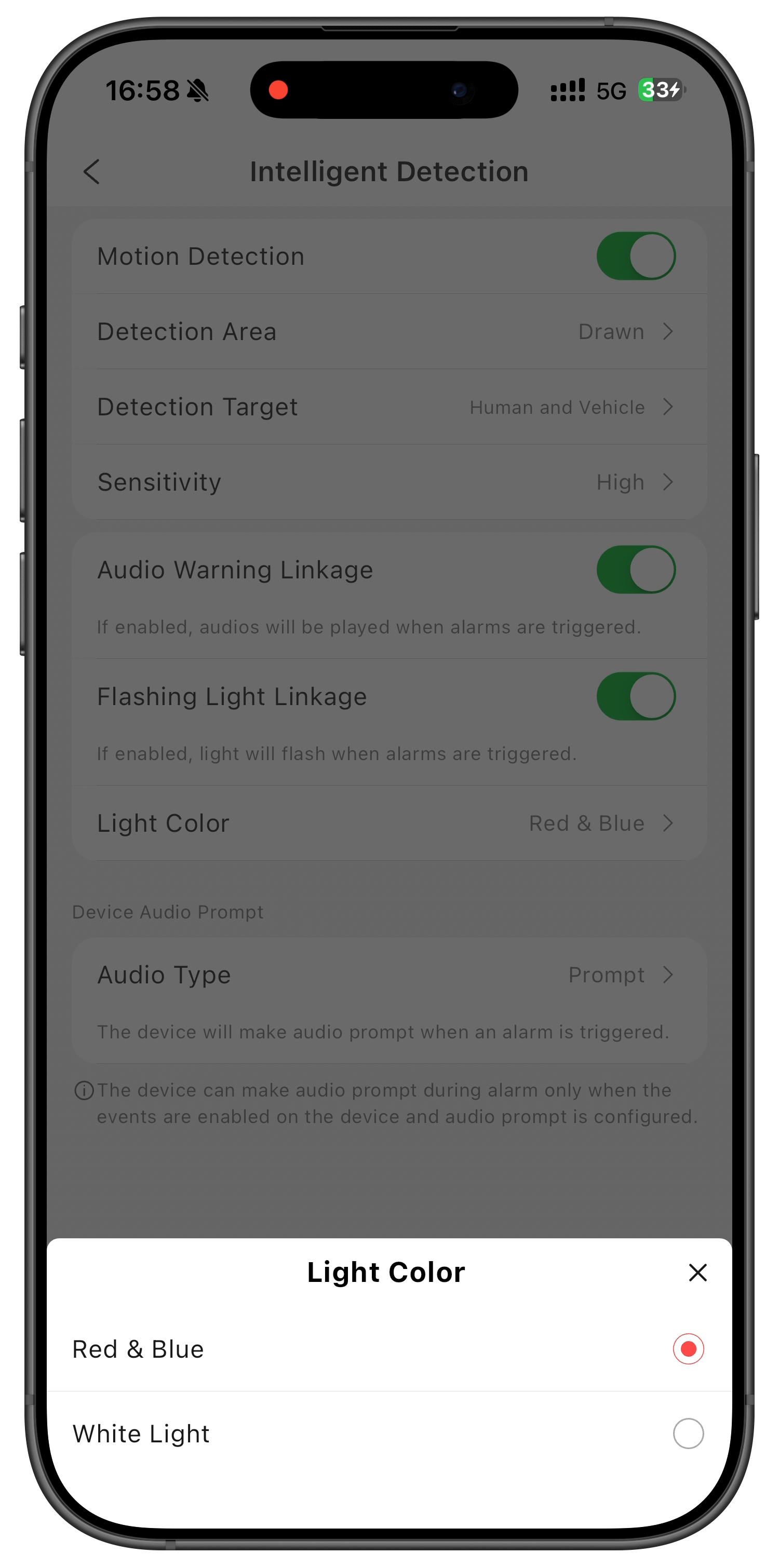
Red & Blue Light Alarm for Camera
PTRZ
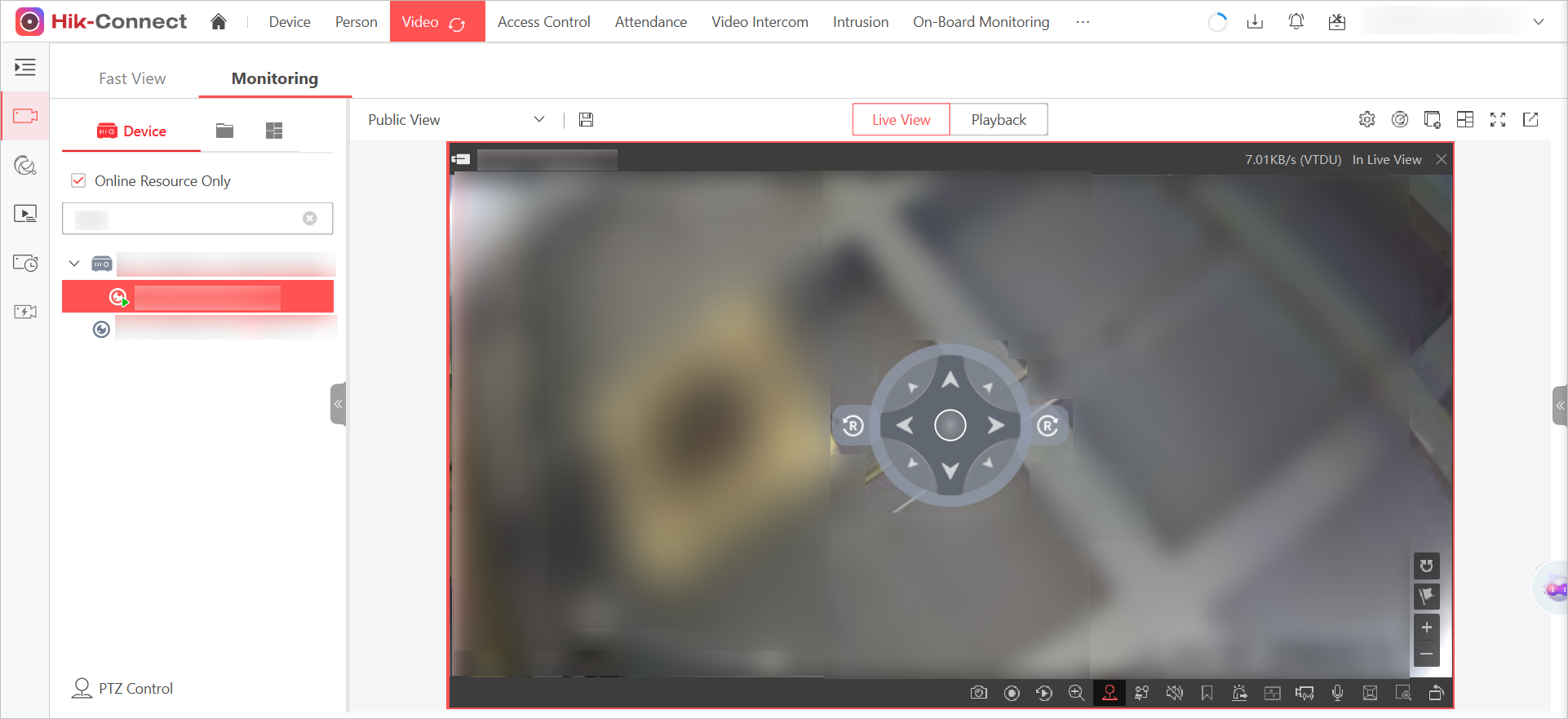
On the Portal and App, you can now control the horizontal rotation of supported Series 2 PTRZ dome cameras. Open the PTZ control panel during live view, and if your camera supports it, use the new rotate buttons to pan the lens left or right for broader surveillance coverage. Note that these specific new camera models do not support preset points.
-
The supported models are as follows:
Table 3 Supported Models Model
DS-2CD27x7G2H-LIPTRZS2U/SL(Y)
DS-2CD27x7G2H-LIPTRZS(Y)
DS-2CD27x7G2HT-LIPTRZS2U/SL(Y)
DS-2CD27x7G2HT-LIPTRZS(Y)
-
These specific new camera models do not support presets.
Person/Vehicle Tag on Playback Page
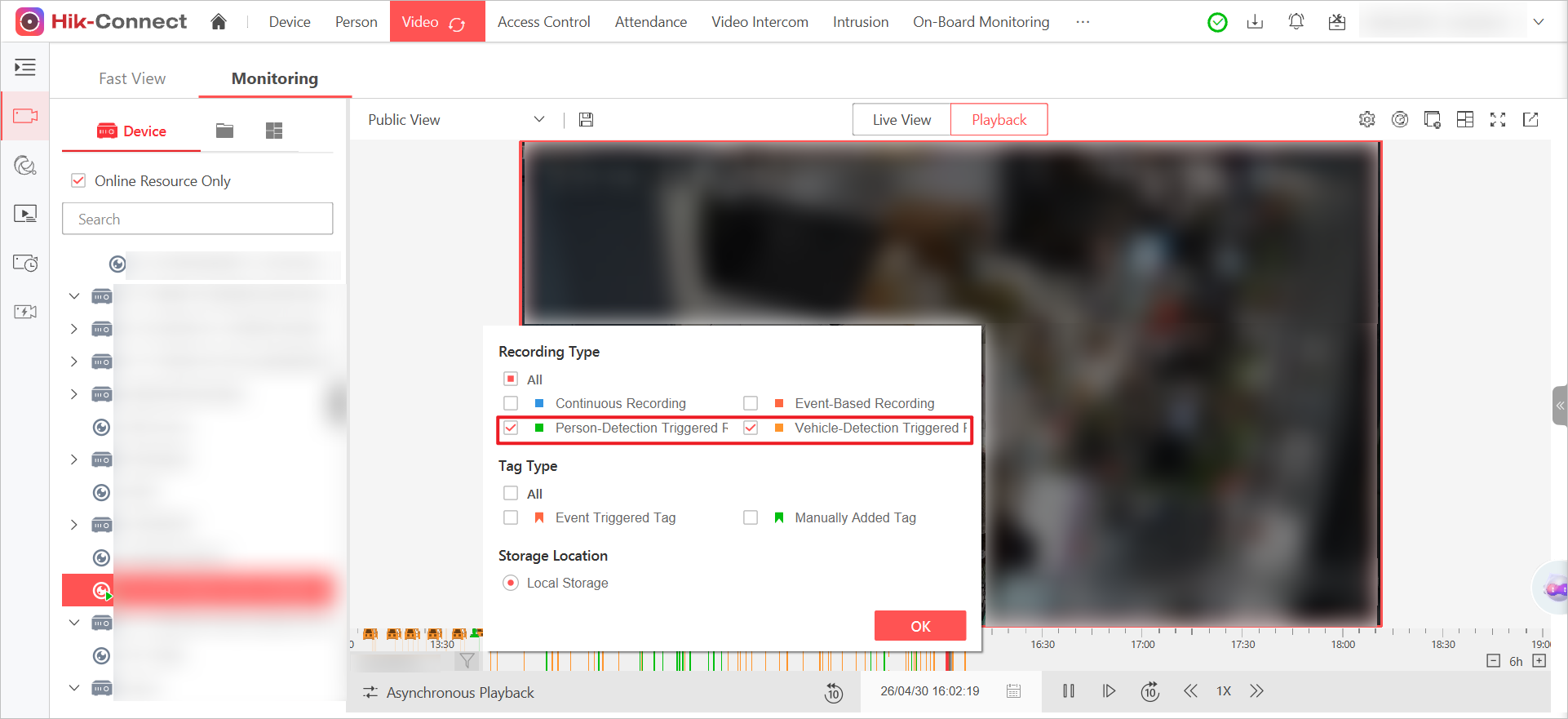
To solve the difficulty in distinguishing human/vehicle targets during playback from directly connected cameras, this version optimizes the recording filter feature. Now, for cameras directly connected to the platform, you can also see color-coded markers for human/vehicle targets on the timeline during playback and use unified filter options for quick filtering.
[Improvement] Event and Alarm
-
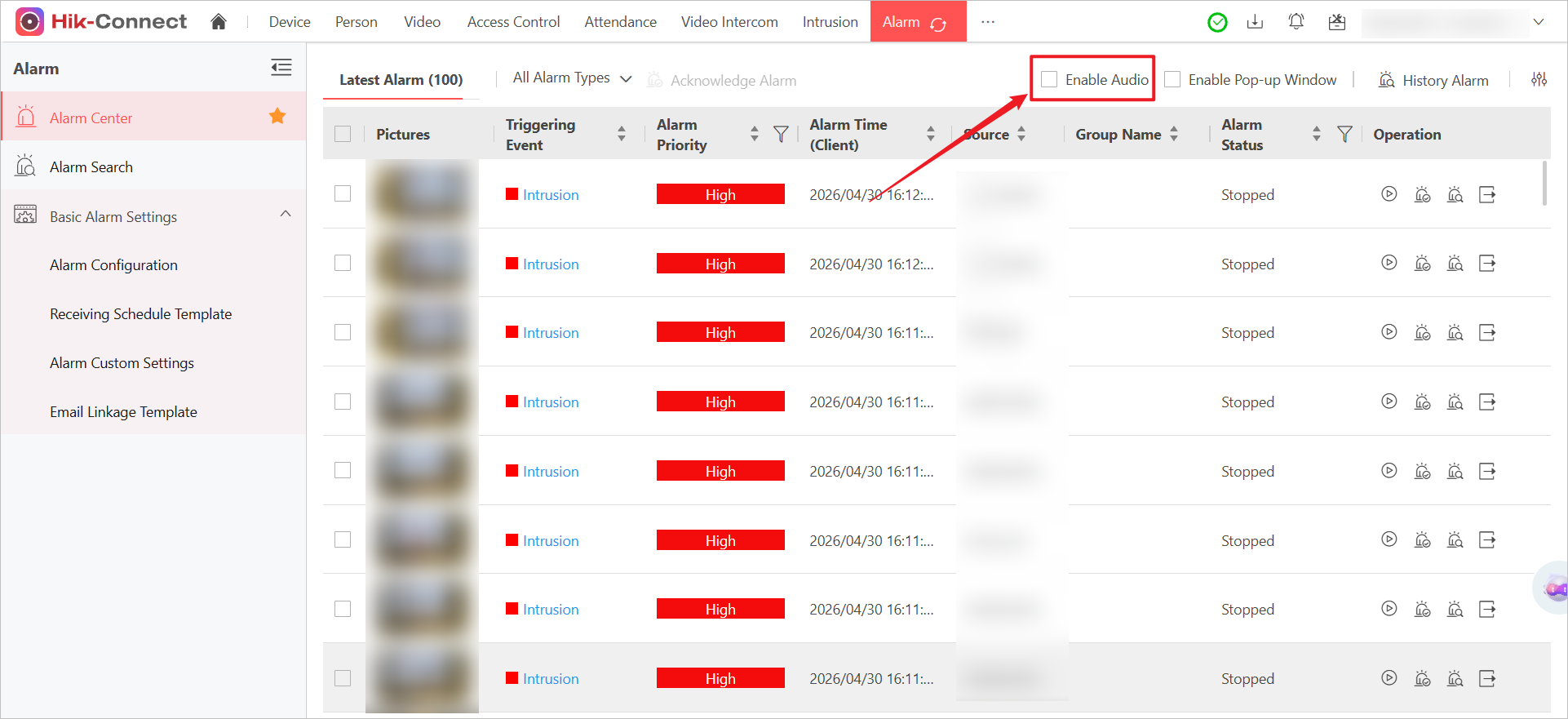
The alarm audio is now DISABLED by default to reduce unnecessary interruptions. You can still manually enable the sound if needed on the Alarm Center page of the Portal.
Figure 33 Enable Audio -
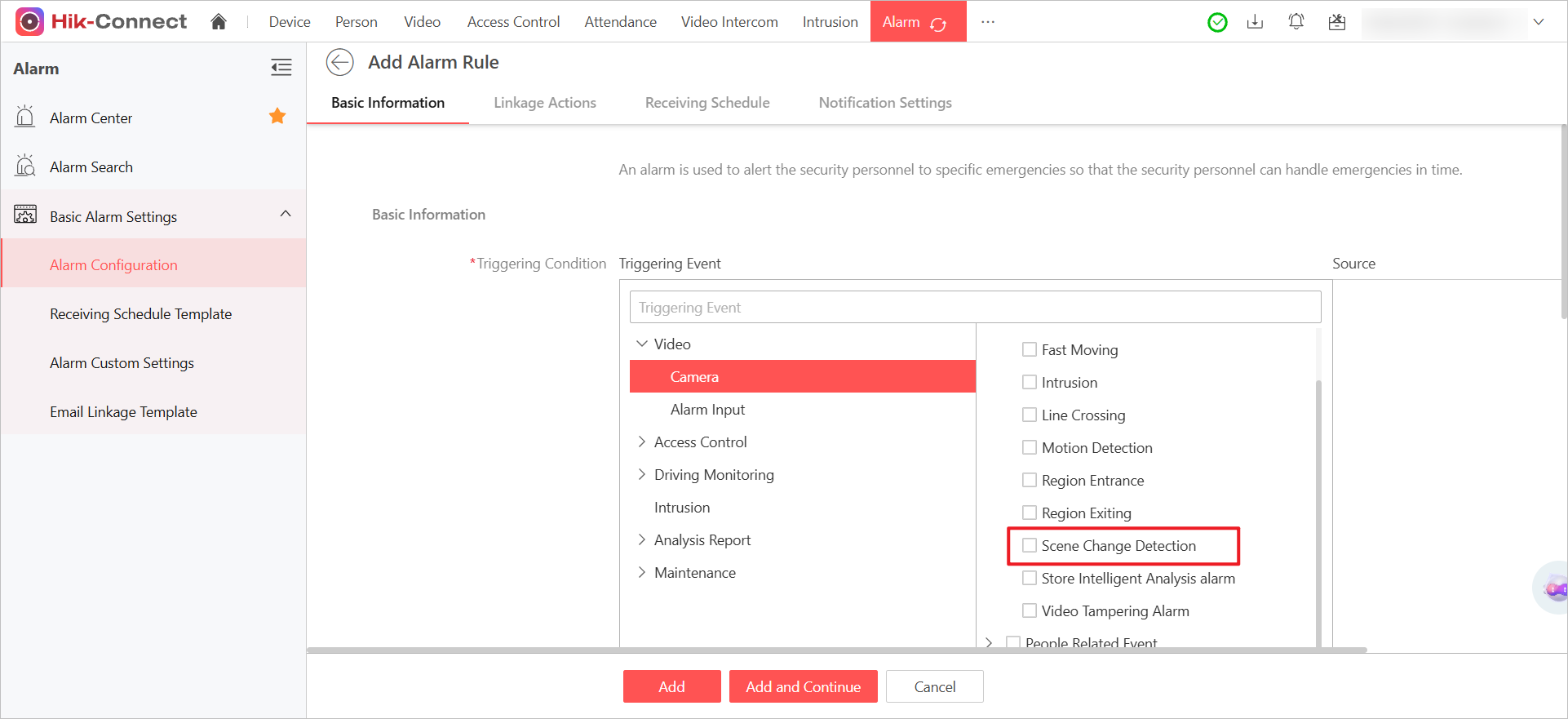
On the Portal, you can now set up scene change detection alarms to automatically monitor for significant changes in your videos. Configure the alarm rule on the Portal by selecting supported cameras and trigger changes (e.g., by moving the camera) to receive alarms on both the Portal and App.
Figure 34 Scene Change EventNoteSupported Models: DS-2TD2628-3/QA, iDS-2CD7A26G0/P-IZHSY, DS-2CD3026G2-IS.
[Improvement] ANPR
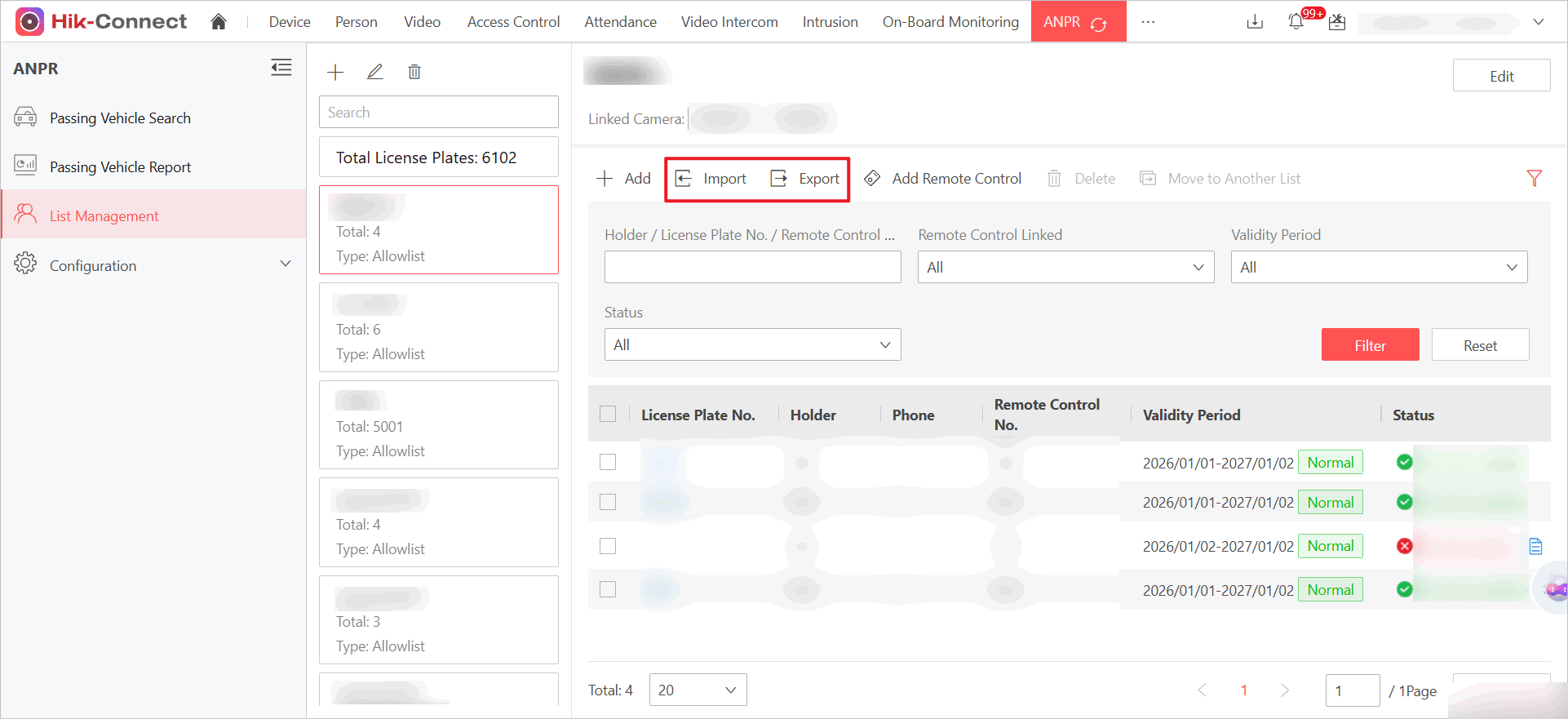
On the Portal, you can now batch import ANPR license plates. Download the template, fill in your plate data (like plate number, optional remote control number, and validity period), and import the file to quickly update your lists. You can also export lists to Excel or CSV for backup.
[Improvement] General
-
On the Portal, you can now create sub-groups with the same name under different parent organizations (like different buildings or departments) to simplify multi-location management. Go to Device, select the desired parent organization, and create a new group with your chosen name, even if it's used elsewhere, as long as it's unique within that specific parent's hierarchy.
Note-
This does not apply to on-board device groups, which must remain globally unique.
-
Excel imports will fail if multiple groups share the same name.
-
[Improvement] Bug Fixes
Fixed a security vulnerability (CVE-2026-32684) related to insufficient directory access controls on iOS, which could allow other malicious apps to obtain sensitive information.