Configure Port Mapping (NAT)
Two ways are provided for port mapping to realize the remote access via the cross-segment network, UPnP™ and manual mapping.
If you want to enable the UPnP™ function of the device, you must enable the UPnP™ function of the router to which your device is connected. When the network working mode of the device is set as multi-address, the Default Route of the device should be in the same network segment as that of the LAN IP address of the router.
Universal Plug and Play (UPnP™) can permit the device seamlessly discover the presence of other network devices on the network and establish functional network services for data sharing, communications, etc. You can use the UPnP™ function to enable the fast connection of the device to the WAN via a router without port mapping.
-
Go to .
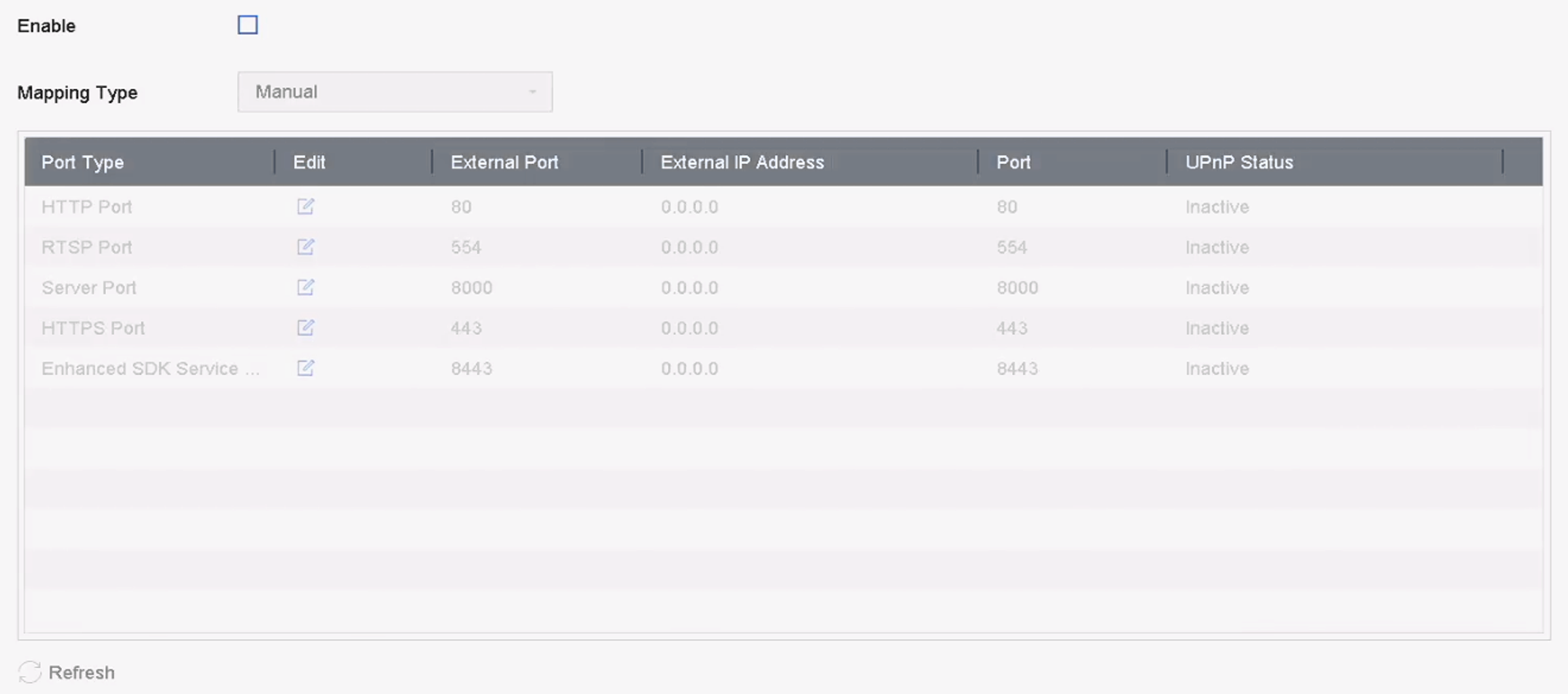 Figure 1 Port Mapping
Setting
Figure 1 Port Mapping
Setting -
Enter the virtual server setting page of router; fill in the blank of
Internal Source Port with the internal port value, the
blank of External Source Port with the external port value,
and other required contents.
Note:
-
Each item should be corresponding with the device port, including server port, http port, RTSP port and https port.
-
The virtual server setting interface below is for reference only, it may be different due to different router manufactures. Please contact the manufacture of router if you have any problems with setting virtual server.
 Figure 2 Set Virtual Server
Item
Figure 2 Set Virtual Server
Item -