Configure Port
You can configure different types of ports to enable relevant functions.
-
Go to System > Network > Advanced > More Settings.
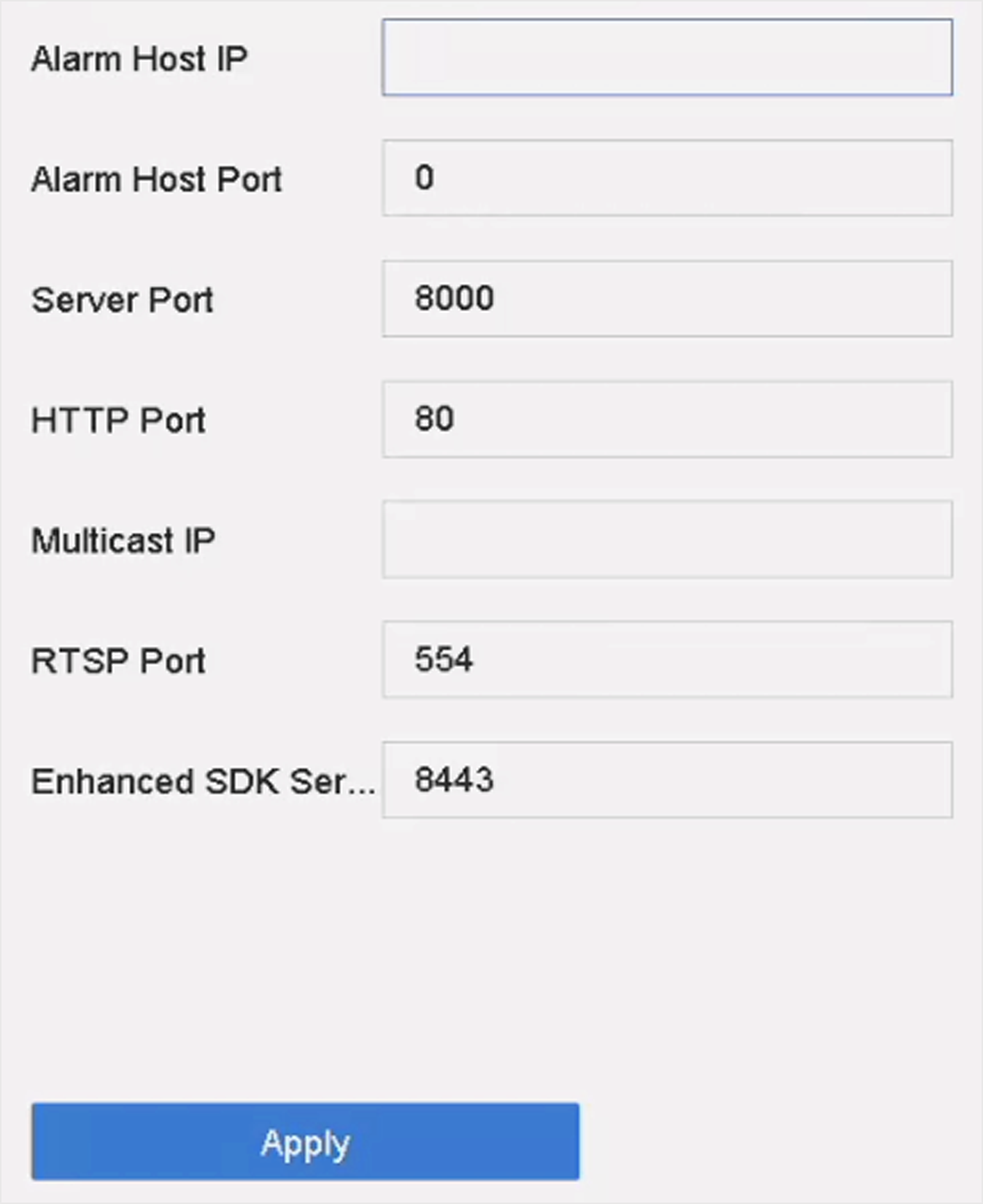 Figure 1 Port Settings
 -
Configure port settings as needed.
- Alarm Host IP/Port
-
With a remote alarm host configured, the device will send the alarm event or exception message to the host when an alarm is triggered. The remote alarm host must have the client management system (CMS) software installed. The alarm host IP refers to the IP address of the remote PC on which the CMS software (e.g., iVMS-4200) is installed, and the alarm host port (7200 by default) must be the same as the alarm monitoring port configured in the software.
- Server Port
-
Server port (8000 by default) should be configured for remote client software access and its valid range is 2000 to 65535.
- HTTP Port
-
HTTP port (80 by default) should be configured for remote Web browser access.
- Multicast IP
-
Multicast can be configured to enable Live View for cameras that exceed the maximum number allowed through network. Both IPv4 and IPv6 are available for multicast IP address. For IPv4, it covers Class-D IP ranging from 224.0.0.0 to 239.255.255.255 and it is recommended to use an IP address ranging from 239.252.0.0 to 239.255.255.255. When adding a device to the CMS software, the multicast address must be the same as that of the device.
- RTSP Port
-
RTSP (Real Time Streaming Protocol) is a network control protocol designed to control streaming media servers. The port is 554 by default.
- Enhanced SDK Service Port
-
The enhanced SDK service adopts TLS protocol over the SDK service that provides safer data transmission. The port is 8443 by default.
- Click Apply.